
Before you start
KeySigner on iPhone or Mac with Sign-in codes
- Use a 1Password membership and 1Password 7 or later. Start with a test account that uses a 1Password account password and Secret Key and shows the Set Up App option.
Data and access
Setup steps
Open authenticator setup in 1Password
At 1Password.com, open your account menu. In Manage Account, choose More Actions, then Manage Two-Factor Authentication and Set Up App. Keep this session open. Follow 1Password’s instructions to store the 16-character authenticator backup shown beside the QR code somewhere secure that you can reach without opening the vault or KeySigner.
Check. The test account shows its authenticator setup QR code, and you can reach the separately stored backup.
Add the 1Password account in KeySigner
In KeySigner, open Accounts, choose Add (+), then Sign-in codes and backup. Unlock Sign-in codes and choose Add account. Scan the QR code from 1Password. Choose Review account, confirm the test account and time-based code type, then choose Confirm and add.
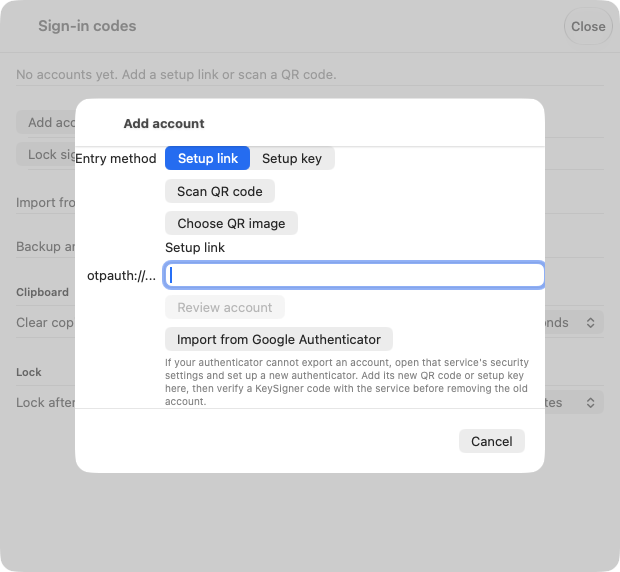
Open Add account in KeySigner for Mac to scan the 1Password setup QR code. The screenshot shows the KeySigner screen before scanning. View full-size screenshot Check. The saved entry in KeySigner identifies the test 1Password account.
Turn on two-factor authentication
Choose Show code for the matching entry in KeySigner. If prompted, set up signer protection and complete the approval. In 1Password, choose Next, enter the current six-digit code and select Confirm.
Check. 1Password confirms two-factor authentication is on for the account.
Sign in from a fresh browser
Use a separate private browser window and keep the original session available. Sign in to the same 1Password account. When prompted, use the current KeySigner code and open a harmless item in the test vault.
Verify a new sign-in - New browser asks for a code
- Enter the current code from KeySigner and check that the test item opens in the intended vault.
- An existing browser skips the prompt
- Use a fresh private window to check the new-device challenge. Previously authorized apps and browsers may stay signed in.
- The code is rejected
- Keep the original session open. Check the KeySigner account label and device time, then wait for a new code before retrying.
Check. The new browser prompts for the code, accepts it and opens the intended account. The original authorized session remains available.
Check your result
Confirm that 1Password accepts the code during enrollment and again at a new sign-in. A six-digit code covers the second factor. You still need your normal 1Password credentials to open the vault.
If you get stuck
The account does not show Set Up App
Check that this is the intended 1Password account and that it uses an account password and Secret Key. If your organization uses Duo, 1Password hides this option because Duo already handles the second factor. Ask the account administrator which method applies.