

Before you start
KeySigner on iPhone and a WalletConnect-enabled test app
- Use an Ethereum key in KeySigner and a test app that offers WalletConnect on a network KeySigner can use. The test app needs a way to verify the signature against the account you select.
Data and access
Prepare a test app
Use a WalletConnect app you control on a supported test network, such as Sepolia. It needs to request a plain-text signature and verify which address signed it. Choose a KeySigner Ethereum test account with no real funds.
Check. The verifier has the intended test address and the exact plain-text message it will check.
Share just the test account
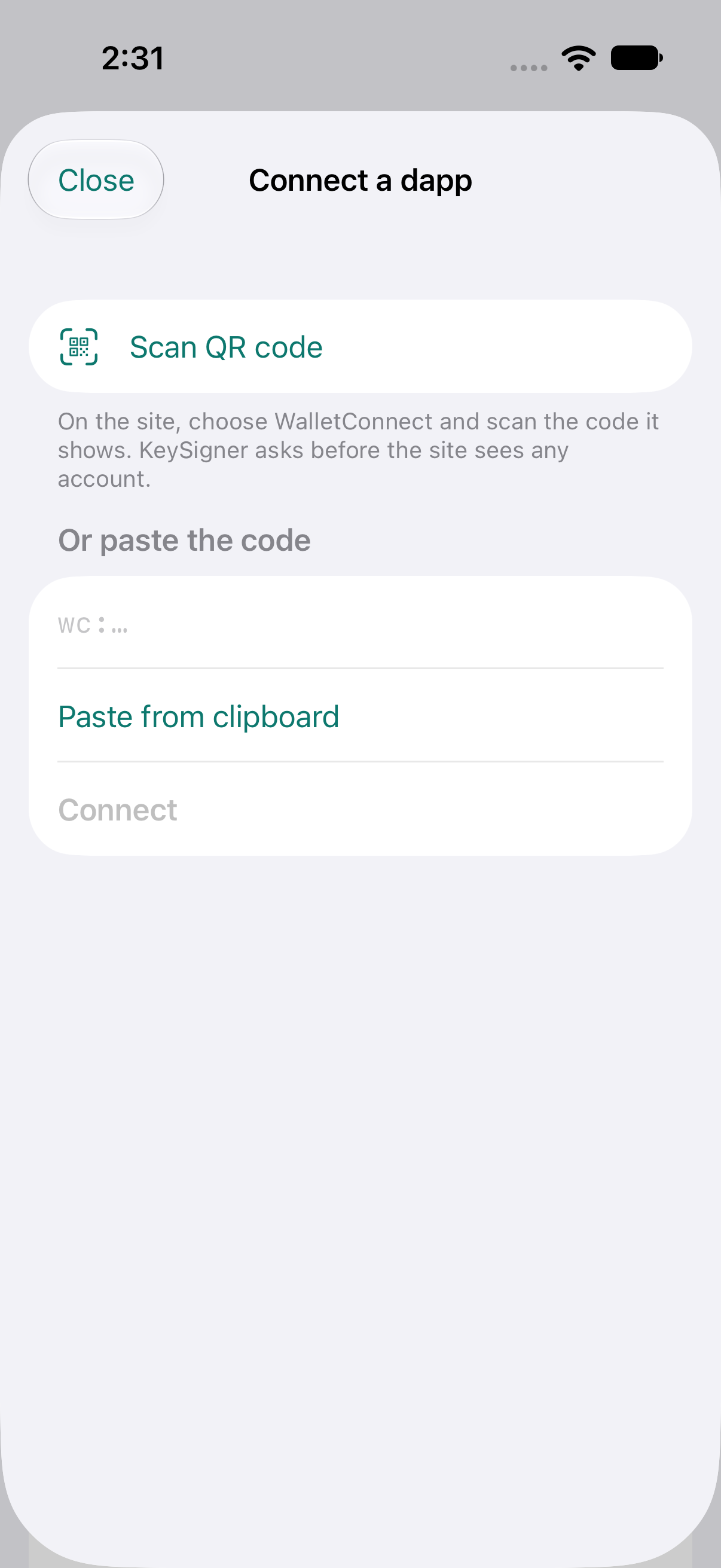
Choose WalletConnect in the test app. In KeySigner, open Accounts, tap Add (+), then choose Connect a dapp. Scan or paste the code. Compare the domain and network with the test app before sharing the account.
Check. The test app receives the one address you selected. KeySigner lists the session under the expected domain.
Review and approve the message
Ask the test app to sign a message you wrote, such as KeySigner test only. Keep KeySigner open and find the request in Inbox. Check the requesting site and exact text before approving.
Check. The Inbox request displays the same website and message. The test app receives a signature only after approval.
Verify and end the session
In the test app, verify the signature against the original message and the selected address. In KeySigner, return to Connected apps and disconnect the test session.
Check. The verifier accepts the original message for the chosen address and rejects a changed message. The session disappears from Connected apps.
Check your result
The app verifies the test address as the signer. Change one character of the message and check that the same signature fails verification. A plain-text test message creates no on-chain transaction.
If you get stuck
The connection works but the request does not appear
Check that the app is requesting a plain message signature from the address you shared. Reopen KeySigner, confirm that the session is active, and retry from the same test app.