
Before you start
KeySigner on iPhone or Mac and a browser
- Use a test Hetzner account with an existing Cloud test project and the mobile device authenticator option. Keep the recovery key or a separate working method.
Data and access
Confirm the account and test project
Open Hetzner Console and identify the existing test project and your role. Keep the current browser session open. In Hetzner Accounts settings, open Two-factor authentication. If you enable it for the test account, save the recovery key separately before adding a method.
Check. You have the intended project, existing access and the recovery key.
Add the mobile device method
Choose the Mobile device method. Continue with KeySigner when Hetzner shows a time-based authenticator setup QR code. In KeySigner, open Accounts and choose Add (+), then Sign-in codes and backup. Unlock Sign-in codes, choose Add account, and scan the setup QR code. Keep the QR code and setup key private.
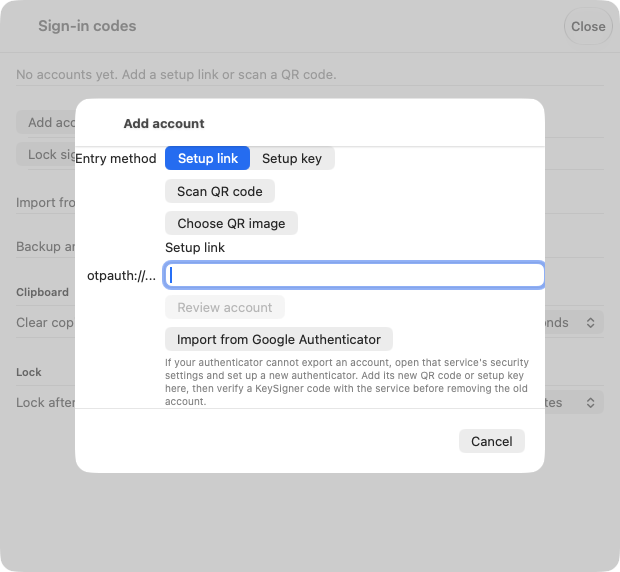
Scan the setup code for your test account in KeySigner. View full-size screenshot Check. KeySigner shows an entry for the correct Hetzner account.
Verify the method in Hetzner Accounts
In KeySigner, choose Show code and complete the required approvals. Enter the displayed code before it changes. In the Hetzner authentication methods list, check that your new mobile device entry is active. Keep a working independent method or the Hetzner recovery key until the browser test succeeds.
Check. The mobile authenticator entry is active.
Open the same project in a fresh session
Open Hetzner Console in a private browser and sign in with the same account. At the mobile authenticator prompt, enter a fresh KeySigner code. Select the original test project and confirm your intended role or the expected test resource.
Check. The same account accepts the fresh code and opens the expected project.
Check your result
Record the account, project and observed role. Check API tokens, storage credentials and access to the server separately. A role in Cloud Console controls what this account can do in the project.
What we tested
Tested on . In a local test, KeySigner imported a synthetic QR code and generated a code that matched an independent verifier. The hosted steps follow the provider’s published instructions. Confirm the hosted sign-in on your own test account.
If you get stuck
Hetzner asks for an email code or the project is missing
Check whether the mobile authenticator is active on the same account. The email challenge uses a code sent by Hetzner. If sign-in works but the project is missing, verify the project invitation and member email. Use the saved recovery key or a second method if you lose access to the authenticator.