
Before you start
KeySigner on iPhone and a YubiKey
- New unlock-key enrollment needs readable firmware version 5.3.0 or later and a key that meets your configured minimum and enrollment settings. Keep a separate recovery method available.
- Check the YubiKey version
Data and access
Check the hardware
Use a YubiKey 5 with firmware 5.3 or later and a supported iPhone. Hold an NFC key at the top of the iPhone or connect a compatible key by USB-C. Check that KeySigner offers the combined unlock option.
Check. The spare YubiKey meets the enrollment requirements and the phone detects it over the connection you plan to use.
Set up a test key
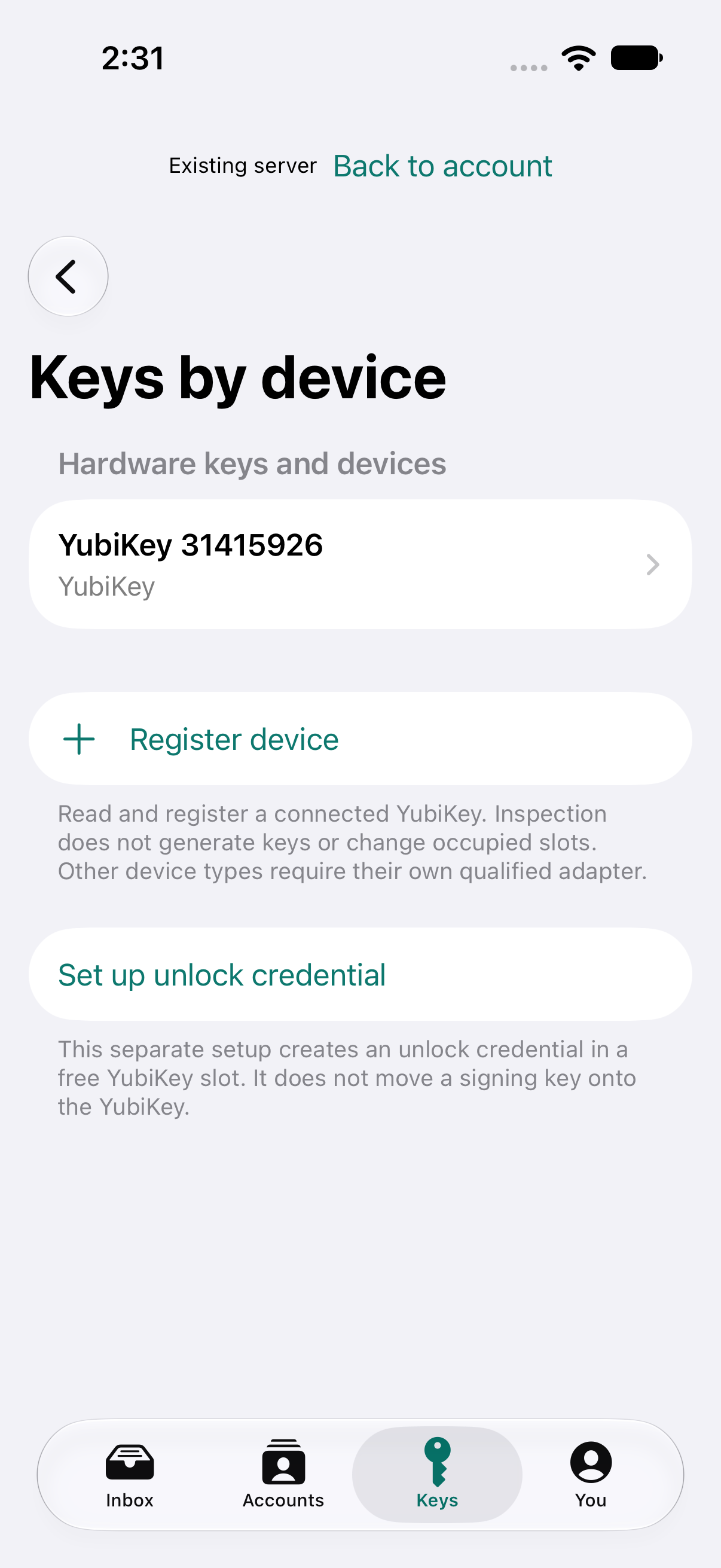
In KeySigner on iPhone, open Keys, then Keys by device. Choose Register device for the spare YubiKey, then Set up unlock credential. When you create a test signing key, choose Use this iPhone, then Face ID + YubiKey under Unlock.
Check. KeySigner lists the registered device, and the new test key shows Face ID + YubiKey under its unlock settings.
Test both outcomes
Try the expendable operation without the YubiKey, then repeat with the correct key and device approval. Decide how you will recover access to the account before protecting any real operation this way.
Check. The first attempt produces no signature. With the registered key and device approval, the same test operation completes.
Check your result
The documented configuration requires the same registered physical key to unlock the protected signing key. A recovery path for the external account must remain available if that physical key is lost.
If you get stuck
KeySigner cannot enroll or read the key
Reconnect the key and check the firmware and enrollment requirements. If KeySigner reports a low PIN retry count, stop guessing and use the independent recovery path you prepared.