Verify an approval and its result
Export the KeySigner decision, then check the app for what actually happened. This guide shows where to look and which records to keep.
Export a decision
- Find the request. Record the request ID and approximate time. In the KeySigner console, people with export access, including organization owners and auditors, can open Audit to see recent events.
- Download the date range. Choose From and To dates in UTC. Select Download CSV for a spreadsheet or Download JSON for structured records.
- Match the records. Find the request in the
operation_idcolumn and read its matching events in sequence order. Keep the original export in your approved storage. Share only the fields your reviewer needs.
Read a package release decision
For a release with a KeySigner approval rule, find the rows for that release request. Use the package, version and build as your reference when you check the result.
| Event in the export | What it records |
|---|---|
package.release. | An owner approved. The release still needs more approvals. Read approver_id in the event payload. |
operation.approved | The request reached the required owner threshold. |
package.release. | KeySigner recorded an approval attestation for the requested package bytes. The event payload lists the approvers. |
operation.denied | An owner denied the request. |
package.release. | A submitted digest for the published package differed from the approved digest. Compare approved_digest with observed_digest and have the release owner investigate. |
To confirm publication, check the exact package version in the registry and its matching workflow run. To verify the published bytes, calculate the SHA-256 digest of the downloaded package archive and compare it with the digest in the approval.
See the GitHub Actions and npm release guide →
Check what happened in the app
Record the app’s run, package version, or event ID alongside the KeySigner request when you can match both to the same action. Check the account and target before treating the app result as evidence.
 GitHub Actions
- Open the expected workflow run and check the job that published the package. See GitHub’s workflow run logs.
 npm
- Open the exact package version. If provenance is available, compare its source build with the one you approved. See npm’s package provenance guide.
 1Password
- For a 1Password Business vault or team change, have an owner or someone with reporting access check the relevant event in the 1Password Business audit log.
 Okta
- For an access change, have an authorized administrator check the user and app in the Okta System Log.
Check audit delivery
If your organization sends KeySigner audit events outside the console, agree who checks delivery. Ask someone who can view integration settings to open Audit and check Last delivered and Last failure under Webhook stream or Storage bucket. The webhook also shows how many events are Waiting.
If delivery stops, ask the receiving system’s operator to look for a known event created after delivery was set up. Compare its sequence with the console status and check the receiver’s logs. If the console says delivery is paused, check the organization’s plan or contact support. Keep an audit export for the missing time range while you investigate.
Share troubleshooting evidence with support
When a setup fails, note the app, the failing step, the time in UTC, the request or run ID if available, and the message you saw. Share those details in your support case. Leave out passwords, tokens and signing material.
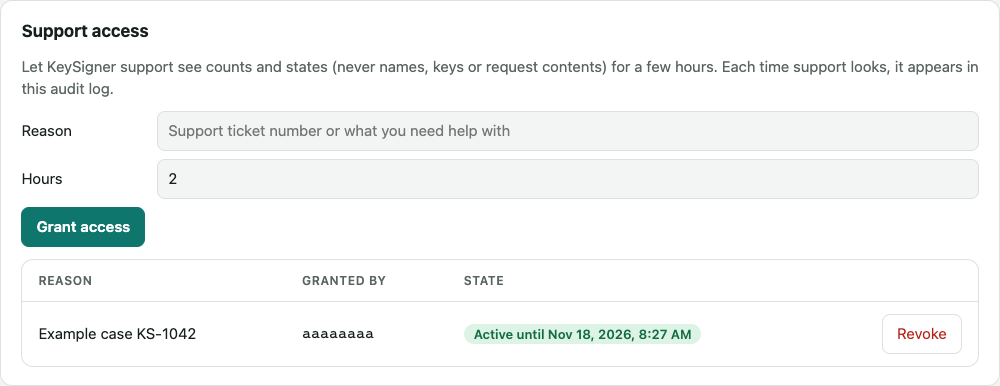
- Grant time-limited access. If KeySigner support needs organization diagnostics, open Settings → Support access in the KeySigner console. As an owner or someone with permission to grant access, enter the case number or reason, choose 1 to 72 hours, then select Grant access. Confirm the row shows Active until.
- Check what support viewed. The grant lets support see counts for members, devices, keys, accounts and recent requests, plus subscription standing and audit delivery health. In Audit, look for
support.grantedandsupport.viewed. In an export, match theirgrant_idfields. - End the grant when support is done. In Support access, select Revoke on the matching row. Confirm it shows Revoked and that Audit shows
support.revoked. Each grant expires separately, so check for other active grants if you intend to end all support access.