

Before you start
KeySigner console and enrolled owner approval tools. KeySigner console and access to the npm test package
- Use a disposable package and a GitHub Actions workflow already configured to wait for KeySigner. Have a separate requester, enough eligible owners and access to the workflow logs.
- Register the disposable package and its owner rule in KeySigner. Use the registry’s own publishing configuration and keep the approved digest and workflow run available for comparison.
Data and access
Match the request to the workflow run
In the KeySigner console, open Accounts and find the package under Packages. Check the registered owners, required number of approvals and minimum key tier. Compare the release request from your workflow with the intended registry, package, version, archive digest and GitHub Actions run.
Check. The package and owner rule match the rehearsal, and the workflow identifies the request and the exact archive it will publish.
Check whether an owner still needs to act
Find the release in the history below Packages. If it says Waiting for owners, compare the approval count with the rule. Ask a registered owner who has yet to vote to review the existing request with their enrolled approval tool. The requester cannot approve their own release.
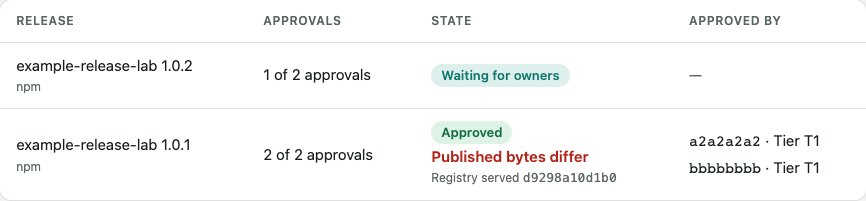
In this local test, version 1.0.2 still needed an owner. Version 1.0.1 was approved, then flagged after we submitted a different digest. View full-size screenshot Check. A row such as 1 of 2 approvals still needs one eligible owner. Submitting the same pending release again with a new request key returns the ID of the existing request.
Use the request state to decide what to retry
Keep the request ID from the original workflow attempt. Check its current state before starting another approval or rerunning the publish job.
What did KeySigner report?
Check. A fresh approval attempt applies to the same waiting request. An owner denial ends that request, and the workflow should leave publication blocked.
Verify what npm received
If the request is Approved, open the corresponding GitHub Actions run and check the publish step. Open the exact version on npm and compare the SHA-256 of its downloaded package archive with the approved digest. Check provenance against the run and source commit if it’s available.
Check. The publish job and registry show the expected version, and the downloaded archive matches the digest that owners approved.
Check your result
Record the KeySigner request ID, GitHub Actions run, npm package version and digest together. Before you rely on the gate, rehearse a denied or still-waiting request and confirm the workflow skips the publish step.
What we tested
Tested on . We used a local KeySigner API and Chromium with a disposable package record. We verified duplicate handling, rejection of an approval attempt whose expiry we set in the test fixture, a fresh attempt on the same request, denial and a digest finding visible to an owner. The rehearsal used test digests and stopped at KeySigner. Verify the publish job and registry outcome in your own workflow.
If you get stuck
Package history says Published bytes differ
Pause publishing and ask the release owner and workflow maintainer to investigate. Compare the approved digest, the digest recorded in KeySigner and the SHA-256 of the archive downloaded from npm. The release requester or a KeySigner administrator can submit a digest for comparison. An authorized auditor can export the finding. If your team forwards audit events, verify delivery in the receiving system.