
Before you start
KeySigner on iPhone or Mac with Sign-in codes
- Use a disposable realm, one non-admin test user with a working code and a separate administrator with credentials and session permissions. Keep the original KeySigner entry until you check the replacement.
Data and access
Confirm the test account and recovery access
Open the Keycloak Admin Console in a separate administrator session. Check the realm, exact username and user label of the authenticator you plan to replace. In a private browser window, confirm the current code still works for the test user.
Check. The old code opens the intended test account, and the separate administrator can manage that user’s credentials.
Require enrollment and remove the old authenticator
Open Users and choose the test user. Under Details, add Configure OTP to Required user actions and save. Open Credentials, find the old authenticator by its label and choose Delete from its actions menu.
Check. Configure OTP is saved for the test user. The named OTP credential disappears from Credentials, and the user’s other methods remain listed.
End the test user’s active sessions
In the same user’s Sessions tab, check for sessions that remain after deleting the credential. Choose Logout all sessions, then Confirm. Reload the old Account Console tab. Check connected apps separately if your test includes any.
Check. The Sessions tab shows no active sessions for the test user. Reloading the previous Account Console leads back to the sign-in page.
Enroll a replacement and try both codes
Close the private window used for the earlier test. In a fresh private window, sign in to the same realm and account. In KeySigner, add the new setup QR as a separate account entry and give the new Keycloak authenticator a distinct label. Keep both QR codes private. After enrollment, close all private windows for the test user and open a new one. Wait for a fresh code and try the old entry once, then enter a fresh code from the replacement entry. After both checks pass, you can remove the old KeySigner entry.
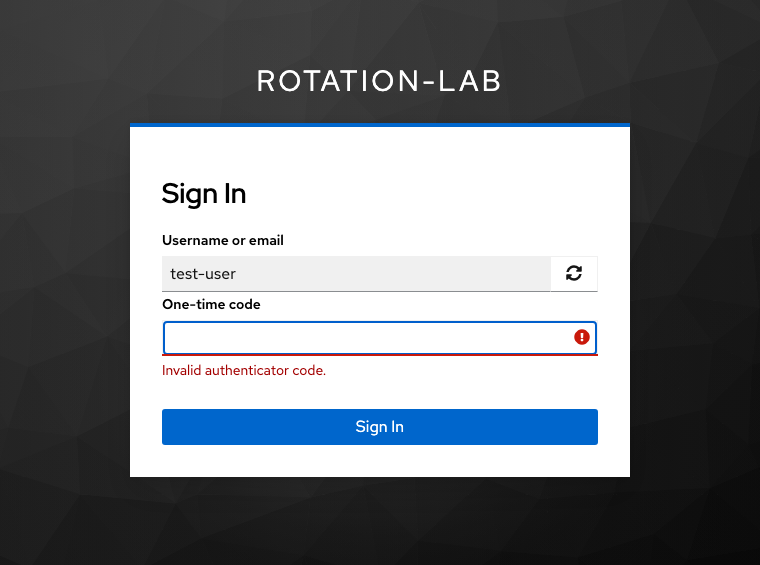
The fresh sign-in rejected a current code from the original Keycloak setup. View full-size screenshot Check. Keycloak shows a new setup QR at enrollment. The fresh sign-in rejects the old code and accepts the replacement code. Credentials shows the replacement label.
Check your result
Removing an authenticator in Keycloak and ending sessions are separate actions. Removing a KeySigner entry from a device leaves the provider’s enrollment in place. If a device is lost or a setup key may have been exposed, have the separate administrator remove the old credential and end affected sessions promptly. Verify access separately in each affected app.
What we tested
Tested on . In a local Keycloak 26.8.2 realm, we used the KeySigner vault and Chromium with a disposable user. Removing the original credential left two sessions active. Logging out those sessions sent the old browser back to sign-in. Keycloak accepted the replacement and rejected a fresh code from the original setup.
If you get stuck
Keycloak opens the account without showing an enrollment prompt
Stop and check the exact realm, user and test browser. Confirm Configure OTP is assigned to the user and try again from a private window. A conditional OTP flow can skip the code step when the user has no OTP credential. Keep the administrator session available until a fresh sign-in shows the new setup QR and accepts a replacement code.