
Before you start
KeySigner on iPhone or Mac with Sign-in codes
- Use a non-admin user in a disposable Keycloak realm with the default time-based OTP policy. Have a separate realm administrator who can reset the test credential, plus the signers your KeySigner rule requires.
- Check Keycloak availability
Data and access
Prepare one test user
In the Keycloak Admin Console, open your test realm and select Users. Open a non-admin test user, add Configure OTP under Required User Actions, and save. Open the Keycloak Account Console for that realm and sign in as the test user to see the setup QR code. Keep the QR code private.
Check. The same realm’s Account Console shows the setup QR for the intended test user.
Add the account in KeySigner
Open Accounts, then Add (+) and Sign-in codes and backup. Unlock Sign-in codes, choose Add account, and scan the QR code. In Review account, check the issuer, test username, and time-based type before you choose Confirm and add.
Check. Confirm the account list shows your Keycloak test entry with the expected issuer and username.
Confirm the code in Keycloak
Choose Show code in KeySigner. If prompted, set up a personal signing rule and enable signer protection. Complete the required approvals and enter the current code in Keycloak. Give the authenticator a recognizable name and finish setup.
Check. The enrollment screen closes after accepting the code and the test user’s account lists the named authenticator.
Try a fresh sign-in
Keep your original browser session open. Sign in to the same realm in a separate private browser window. When Keycloak asks for a One-time code, approve a fresh code in KeySigner and enter it before it expires.
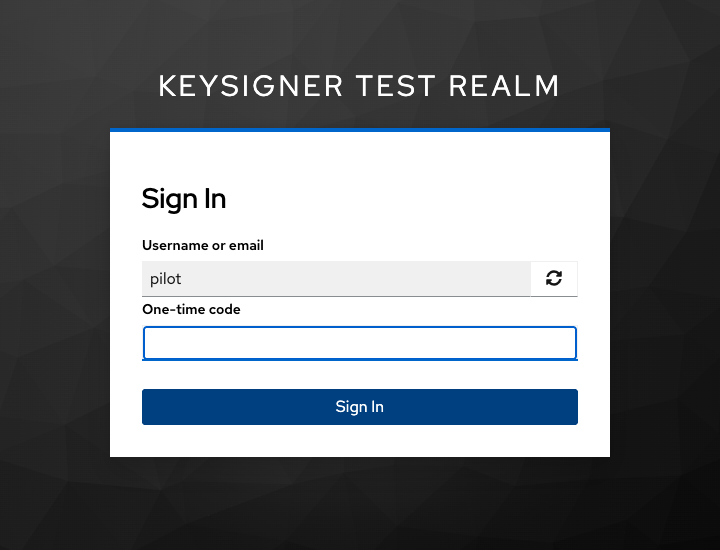
One-time code prompt in a local Keycloak 26.8.2 test realm. View full-size screenshot Check. The private browser window prompts for a code. An incorrect code leaves that prompt in place. A fresh valid code opens the account.
Check your result
Keycloak accepts the enrollment code and opens the Account Console after you enter a fresh code.
What we tested
Tested on . We used the KeySigner vault and a browser against a local Keycloak 26.8.2 test realm. Keycloak accepted the enrollment code and a fresh sign-in code, and rejected an incorrect code.
If you get stuck
Keycloak does not ask for a code
Verify that the test user has an OTP credential and that the realm’s active browser flow asks that user for a code. If a code is rejected, check the account and device clock. Use the replacement guide when you need to remove a test credential and set up a new one.