Before you start
KeySigner on iPhone or Mac with Sign-in codes
- Use an enrolled non-admin test account on a local instance. Keep a signed-in Security tab, the old KeySigner entry and an independent recovery route until the replacement works in a fresh session.
- Use an enrolled non-admin test account on a local instance. Keep a signed-in Security tab, the old KeySigner entry and an independent recovery route until the replacement works in a fresh session.
Data and access
Confirm access and recovery
Match the server address and username in Settings, then Security. Use a disposable account on a test instance. Keep the settings tab signed in, keep the current entry in KeySigner and confirm access to an independent recovery route. Use a separate browser session to check that a fresh code from the current entry opens the same test account.
Check. The original entry still works, the second browser session opens your test account and you can reach independent recovery.
Remove the old enrollment in the provider
In the original Settings, Security tab, open the two-factor authentication controls and remove the old enrollment. Reload the second browser session and check whether it is still signed in. Keep the original tab open to enroll the replacement.
Find the removal control
 Gitea
- Choose Disable Two-Factor Authentication, then Yes.
 Forgejo
- Choose Disable two-factor authentication, then Yes.
Check. Security offers enrollment again. Record whether the previously signed-in second browser can still open Security.
Enroll and save the replacement
From the original Security tab, open a new enrollment QR code. Add it as a separate entry in KeySigner Sign-in codes, with a label that distinguishes it from the old entry. Enter a fresh code from the new entry to verify enrollment. Save the new single-use recovery key somewhere you can reach independently. Keep both QR codes private.
Check. Security shows two-factor authentication is enabled and the recovery controls are available again.
Try the old and new codes
Open a clean browser session and start signing in to the same test account. Enter a fresh code from the original KeySigner entry once. Then enter a fresh code from the replacement entry. After both checks pass, remove the old KeySigner entry and sign out of the test sessions.
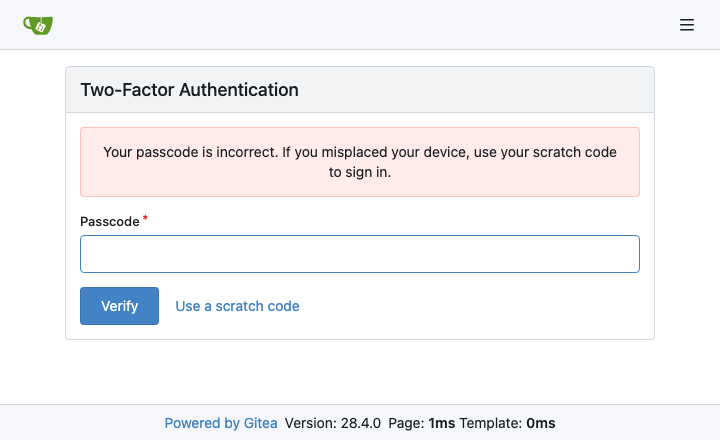
A clean Gitea session rejected a current code from the original setup after replacement. View full-size screenshot Check. The old code is rejected and the replacement opens the expected account. Security shows two-factor authentication is enabled.
Check your result
The provider controls authenticator enrollment and browser sessions separately. Removing the KeySigner entry leaves the provider enrollment in place. If the old setup key may have been exposed, use your independent recovery route promptly and review any sessions or access tokens that might have been affected.
What we tested
Tested on . In local Gitea 28.4.0 and Forgejo 17.0.1 instances, Chromium used codes generated by the KeySigner vault. A previously signed-in browser session stayed open after removal. After reenrollment, both test instances rejected a fresh code from the original setup and accepted a fresh replacement code.
If you get stuck
The replacement code is rejected
Check the server address, username and replacement label. Turn on automatic date and time if needed and use the next code. Keep the signed-in settings tab open until a fresh browser session accepts the new code.