
Before you start
KeySigner on iPhone or Mac with Sign-in codes
- Use an IAM test user with MFA enrollment permission in a sandbox account. Keep an independent MFA device or an administrator available. AWS recommends a passkey or security key where possible.
Data and access
Open the IAM enrollment QR code
In the sandbox AWS console, open IAM, choose Users and select the test user. On Security credentials, choose Assign MFA device. Name the device, select Authenticator app, then choose Next and Show QR code. Keep the QR code private.
Check. The IAM user page shows the intended sandbox user and an authenticator-app setup QR.
Add the account in KeySigner
Open Accounts, then Add (+) and Sign-in codes and backup. Unlock Sign-in codes, choose Add account, and scan the setup QR code. Review the time-based entry, check the issuer and account name, then confirm and add it.
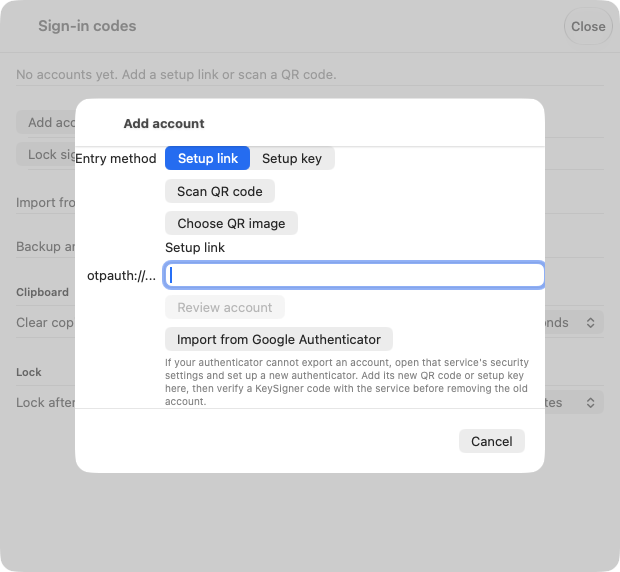
Add account in KeySigner for Mac before scanning a test QR code. View full-size screenshot Check. KeySigner lists the sandbox IAM user under the expected issuer.
Enter two consecutive codes
Choose Show code for the test IAM user in KeySigner and complete any signer approval. Enter the current value in MFA code 1. After it changes, approve the next code, enter it in MFA code 2 and submit Add MFA promptly. Have the signers your rule requires available for both codes.
Check. After the two consecutive codes are accepted, the named authenticator appears under the user’s Security credentials.
Check a separate console sign-in
Keep your original session open and sign in as the same IAM user in a private window. At the MFA prompt, request a fresh KeySigner code. Keep the independent MFA device or sandbox administrator available during and after the test.
Check. The private window opens the sandbox console as that IAM user after the MFA prompt.
Check your result
AWS lists the authenticator on the IAM user’s Security credentials tab and accepts a fresh code in the separate browser session.
If you get stuck
AWS rejects the two enrollment codes or a later sign-in code
Check automatic date and time on your device. Use consecutive codes from the same account, and submit as soon as the second is ready. If AWS saved the device but then rejects fresh codes, use your independent access and follow the AWS resynchronization guide.