

Before you start
KeySigner on iPhone or Mac with Sign-in codes
- Use a test user who signs in with a DigitalOcean username and password. In My Account → Two-factor authentication, choose Set Up 2FA and the authentication app option. Select backup codes when asked for a backup method.
- Use a test user whose login method is Cloud Manager. Go to Login & Authentication, check that all three security questions are configured, then enable Two-Factor Authentication. Save the scratch code when setup completes.
- Use a test Owner or IAM Member with the required permissions. From your profile menu, open Settings. Under Account security, choose One-time password, then Set up TOTP. Save the backup codes after setup.
Data and access
Open the test user’s security settings
Follow the account setup for your provider. If the account uses Google or GitHub to sign in to DigitalOcean or Akamai Cloud Manager, manage the second factor in Google or GitHub instead.
Check. Identify the provider that actually authenticates this user. Open its code setup for the test identity.
Add the account in KeySigner
Open Accounts, then Add (+) and Sign-in codes and backup. Unlock Sign-in codes, choose Add account, and scan the setup QR code. Review the time-based entry, check the issuer and account name, then confirm and add it.
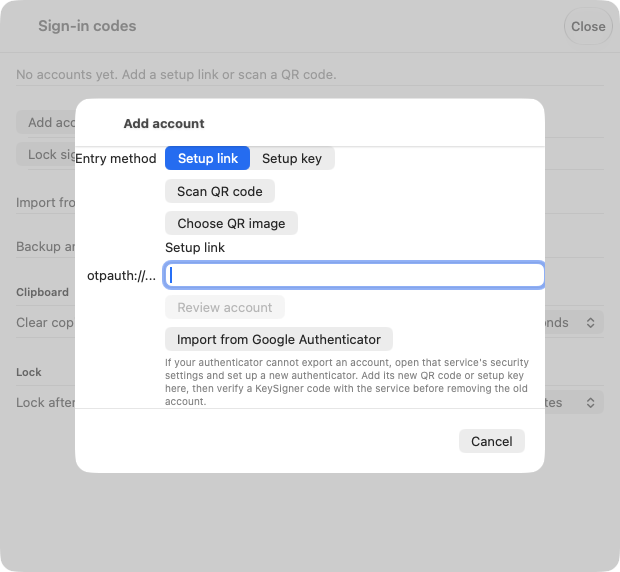
Add account in KeySigner for Mac before scanning a test QR code. View full-size screenshot Check. The saved entry matches the provider and dashboard user you intend to test.
Enable the code and save the provider’s backup
Choose Show code. If prompted, set up signer protection with a personal signing rule and have the required signers available. Approve and submit a current code in the setup form. For DigitalOcean, choose backup codes when asked for a backup method. Akamai gives you a scratch code. Scaleway shows one-time backup codes after you submit the setup code. Store them where you can reach them independently of the dashboard and KeySigner.
Check. The provider shows an active authenticator, and its backup method is reachable independently.
Check a fresh dashboard session
Leave your original session open and sign in again in a private window. Use a fresh KeySigner code for the test user. If Scaleway offers a passkey first, choose the time-based code option for this test.
Check. The private window opens the correct dashboard and user after accepting the fresh code.
Check your result
The dashboard accepts a fresh time-based code and you can reach the provider’s recovery method. Dashboard access, server access and automation credentials each have their own controls.
If you get stuck
The dashboard doesn’t show an authenticator setup option
In DigitalOcean and Akamai Cloud Manager, check whether an external provider handles the user’s sign-in. For Akamai’s own sign-in, complete its security questions first. In Scaleway, find One-time password in your account security settings. If you are an IAM Member prompted to complete your security checklist, choose Enable MFA there. Check the provider documentation before changing an existing second factor.