Before you start
KeySigner on iPhone or Mac with Sign-in codes
- Use a direct CircleCI email and password test account. Save CircleCI’s one-time recovery code separately.
- Use a test account on a SailPoint tenant configured for authenticator codes. Confirm how you can recover access before enrolling.
Data and access
Open the setup QR code
Use a test account you control and confirm you have an independent recovery route. Keep the original browser session open while you enroll.
Find your provider’s setup screen
 CircleCI
- Use a direct CircleCI email and password account. In User Settings, open Password & authentication and choose Add authenticator app. Confirm your password to view the QR code. A GitHub or Bitbucket sign-in uses that provider’s security settings.
 SailPoint
- Use a test account on a SailPoint tenant configured for authenticator codes. At the enrollment prompt, display the setup QR code. If the prompt routes through another provider, follow that provider’s setup instructions.
Check. The provider shows a setup QR code for the intended account.
Add the account in KeySigner
Open Accounts and choose Add (+), then Sign-in codes and backup. Unlock Sign-in codes and choose Add account. Scan the QR code and check the account label before saving. Keep the QR code and setup key private.
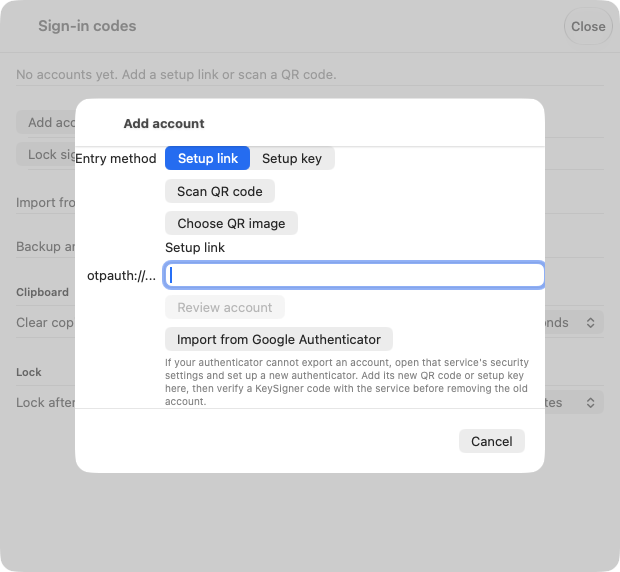
The KeySigner setup screen on Mac. Scan the code from your test account. View full-size screenshot Check. The KeySigner entry identifies the intended provider and account.
Confirm your first code
Choose Show code in KeySigner and complete the required approvals. Enter the current code in the provider’s setup form. CircleCI displays a one-time recovery code when you finish. Save it somewhere you can reach separately from KeySigner. For SailPoint, confirm who can restore access to the test account if you lose your authenticator.
Check. CircleCI shows that the authenticator app is enabled, or SailPoint accepts the code when you choose Verify.
Try signing in again
In a private browser window, sign in as the same test user and enter a fresh KeySigner code when prompted. Keep the original session open until the test passes.
Check. The provider prompts for and accepts a new code for the same account in your private browser.
Check your result
Record which provider asked for the code, which test account signed in, and where you can recover access. Test CircleCI pipeline permissions and SailPoint application assignments separately.
What we tested
Tested on . KeySigner imported separately generated test QR codes and produced codes that matched an independent verifier. The CircleCI and SailPoint enrollment steps follow their published instructions. Verify each hosted account with a fresh browser sign-in.
If you get stuck
There is no code prompt, or the provider rejects the code
Check that you opened a private browser and selected the same account. If sign-in opens another provider, check the settings there. For a rejected code, check your device clock and wait for a new code if the current one is about to expire. For a SailPoint reset, confirm that you can recover access before following the provider’s reset instructions, which sign you out.