


Before you start
KeySigner on iPhone or Mac with Sign-in codes
- Use a test PyPI account. In account settings, generate recovery codes and verify one before choosing Add 2FA with authentication application. PyPI allows one authenticator app per account and recommends a security device where possible.
- Use a test RubyGems.org account with no gems. Open edit settings, then Multi-factor Authentication and Authentication App. Register a device and have secure storage ready for the recovery codes shown after setup.
- Use an individual Docker account with a verified email and have your password available. Docker documents this for Personal and Pro. Go to Account settings → 2FA and save the single recovery code before scanning the QR code.
Data and access
Open the registry’s authenticator setup
Open the authenticator settings for your registry. Keep its setup page open, and keep the QR code private. For PyPI, save and verify the recovery codes first. For Docker Hub, save the single recovery code before you scan.
Check. The QR belongs to the intended registry and test account. For PyPI or Docker Hub, verify you can reach the recovery copy before proceeding.
Add the account in KeySigner
Open Accounts, then Add (+) and Sign-in codes and backup. Unlock Sign-in codes, choose Add account, and scan the setup QR code. Review the time-based entry, check the issuer and account name, then confirm and add it.
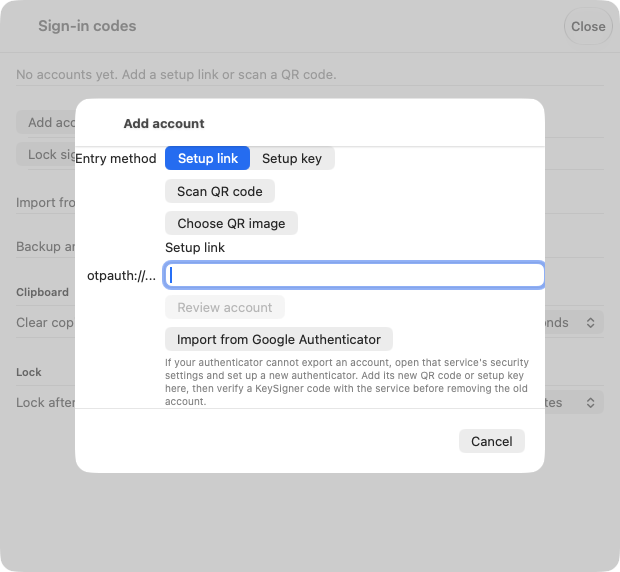
Add account in KeySigner for Mac before scanning a test QR code. View full-size screenshot Check. The registry entry appears in KeySigner with the correct issuer, account and time-based code type.
Confirm a code and save recovery access
Select Show code for the test account. Have the signers your personal rule requires available. Approve the request and enter the current code in the registry’s setup form. RubyGems.org shows its recovery codes after verification. Keep the registry’s recovery codes somewhere you can open without KeySigner or the test account.
Check. The registry confirms the authenticator is enabled. Check that you can reach its recovery codes without opening the registry account.
Try a new browser sign-in
Keep the original session open and sign in in a private window. Generate a fresh code for the same account. For Docker Hub, test through the browser. Docker scripts and CI use scoped access tokens.
Check. The registry opens the intended account in the private window after the new code is entered.
Check your result
The registry accepts a fresh browser sign-in code, and you can reach its recovery codes independently. Review the project’s publishing permissions separately before relying on the account for releases.
If you get stuck
PyPI won’t let you add an authenticator
Open account settings and generate recovery codes, then submit one to verify you’ve saved them. PyPI allows one authenticator app per account. If the test account already has one, start with a separate test account or use the recovery workflow in the official docs.