Before you start
KeySigner on iPhone or Mac with Sign-in codes
- Use a non-privileged sandbox user whose rules allow authenticator app codes. Keep a second registered verification method and confirm who can issue an MFA temporary verification code.
- Use a test end-user account in an environment that offers Authenticator app in My Profile. Keep an independent method accepted by that same application.
- Use a test User Portal account with TOTP enrollment enabled. Keep a separate JumpCloud administrator available to reset the user’s enrollment if necessary.
- Use a test application in a separate Auth0 tenant. Configure Universal Login to require MFA with One-time Password and Recovery Code available. Save the recovery code securely outside the account in the test.
Data and access
Find the setup QR code for the exact test account
Keep one working session open. Check the account name and the sandbox, environment or app before enrolling. Use the instructions for your provider below to open the setup QR code on a second screen.
Enrollment and recovery by provider
 Salesforce sandbox
- Use a non-privileged sandbox user allowed to use codes. In personal settings, find Advanced User Details or Personal Information. Choose Connect under App Registration: One-Time Password Authenticator and verify your identity to see the QR code. Keep another registered verification method. For a Salesforce MFA lockout, confirm who can issue a temporary verification code.
 PingOne end user
- Open My Profile → Authentication in the test environment. Choose Add Method, then Authenticator app. Pair the account with the QR code, then enter a code to finish. Keep a second allowed method that works independently of KeySigner and confirm it is offered for the same app.
 JumpCloud User Portal
- Sign in to the User Portal as a test user with authenticator codes enabled. At Verify Your Identity, choose Continue, then I Have the App. Scan the QR code and enter a code to submit. Confirm that a separate JumpCloud administrator can reset the user’s authenticator enrollment.
 Auth0 test app
- Use a separate test tenant and a test application whose Universal Login flow requires MFA and offers One-time Password and Recovery Code. Start the test app’s sign-in in a desktop browser. Choose the authenticator option if asked, then scan its QR code and confirm a code. Save the Auth0 recovery code securely outside the account you’re testing.
Check. The QR code is open in the intended test environment and belongs to the exact test user.
Add the test account in KeySigner
Open Accounts, choose Add (+), then Sign-in codes and backup. Unlock Sign-in codes, choose Add account, and scan the QR code. Confirm the issuer and account name before saving. Keep the QR code and setup key private.
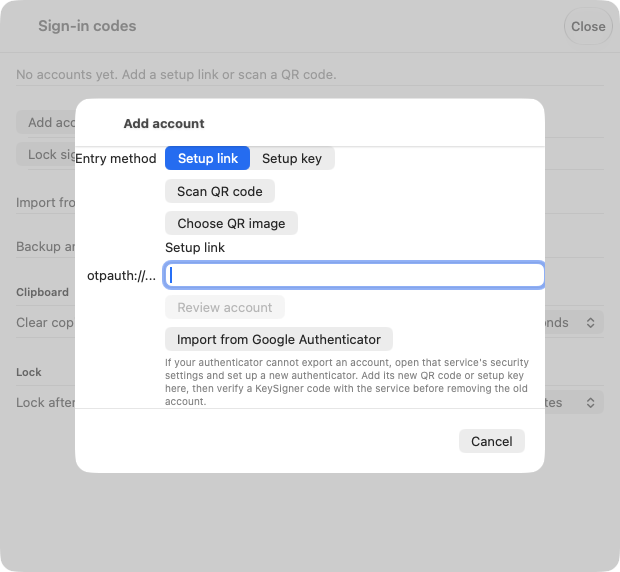
Add account in KeySigner for Mac. Use the provider’s test setup QR code. View full-size screenshot Check. The saved KeySigner entry displays that issuer and account.
Enter a code and check the backup
In KeySigner, choose Show code and complete the required approvals. Enter the current code in the provider’s enrollment prompt and look for confirmation. Check that your provider’s fallback is available before closing the working session.
Check. The provider confirms enrollment, and a separate recovery method or administrator is available.
Check a fresh sign-in
Open a private browser window. Return to the same sandbox org, PingOne app, JumpCloud User Portal or Auth0 test app and use the same account. When asked for a code from an authenticator app, approve a new code in KeySigner and enter it.
Check. The new browser session opens the same test app or portal under the intended user after accepting a fresh code.
Check your result
The same provider and test account open in a fresh session after accepting the code. Confirm that the alternate method, recovery code, or authorized administrator is available without KeySigner. This checks interactive access to the named test account. App permissions, administrator access and recovery of encrypted data have their own controls.
If you get stuck
No authenticator app option, or the code was rejected
Verify that you opened the same test org, environment or app with the same account. Salesforce time-based codes apply to non-privileged users. PingOne, JumpCloud and Auth0 depend on the enabled methods and the policy for that user. Check the saved issuer and account, use automatic time on your device, and try a fresh code. Keep the working method in place.