
Before you start
KeySigner on iPhone or Mac and a browser
- Use an isolated Jenkins instance, a compatible OpenMFA release, a read-only local user and independent administrator access.
Data and access
Set up a Jenkins test user
In an isolated Jenkins instance, use a local user with read-only access and confirm that a separate administrator can get in independently. Install a compatible version of OpenMFA. In Manage Jenkins, open Security and find OpenMFA Configuration. Turn on Require MFA for the test instance.
Check. The disposable user reaches the enrollment prompt and the independent administrator can sign in.
Add the Jenkins account in KeySigner
Sign in as the test user and open the OpenMFA setup prompt. In KeySigner, open Accounts, choose Add (+), then Sign-in codes and backup. Unlock Sign-in codes, choose Add account, and scan the Jenkins QR code. Check the label and keep the QR code and setup key private.
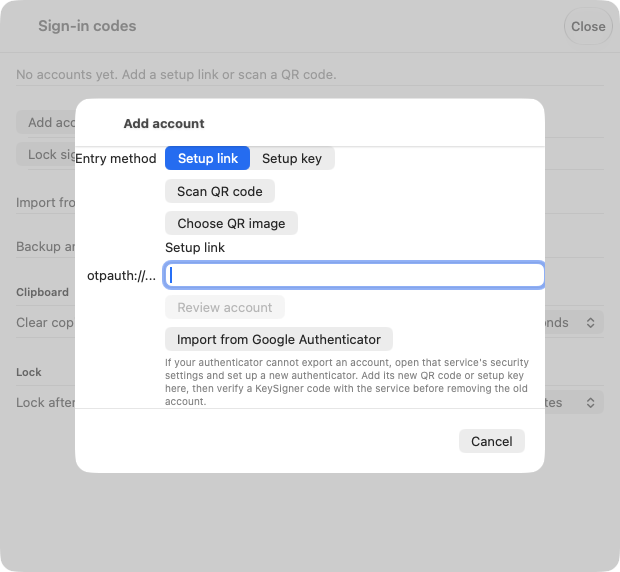
The KeySigner setup screen on Mac. Scan the setup code for your disposable account. View full-size screenshot Check. The entry in KeySigner identifies the Jenkins test account.
Confirm a code in Jenkins
Choose Show code in KeySigner, complete the required approvals, and enter the displayed code in the Jenkins setup form. Confirm that the user’s Jenkins settings show the authenticator is enabled.
Check. Jenkins shows that the test user enrolled an authenticator.
Check a fresh browser session
Wait for the code to change, then sign in as the same user in a private browser. Confirm Jenkins asks for a code. In the test instance, try one invalid code, then enter a fresh KeySigner code. Check that the user can view the dashboard and that the separate administrator still has access.
Check. Jenkins rejects the invalid code and accepts a fresh code. The test user stays read-only.
Check your result
Verify the browser session and permissions for the same test user. Check pipeline approvals, build credentials and any API token policy in separate tests.
What we tested
Tested on . On local Jenkins 2.591 with OpenMFA 111.v347db_32e7f24, KeySigner imported the Jenkins QR code. Jenkins accepted enrollment, rejected an invalid code, and accepted a fresh code in a separate browser session. The test user retained read-only permissions and the independent administrator could still sign in.
If you get stuck
Jenkins rejects a code just used during setup
Wait for KeySigner to show a different code and try again. Confirm the KeySigner entry belongs to this Jenkins instance and user. Check both clocks if each new code fails. If the test instance redirects sign-in to an identity provider, check that provider’s settings.