
Before you start
KeySigner on iPhone or Mac, a browser and a certificate client
- Use a test step-ca authority with a Keycloak-backed OpenID Connect provisioner, a non-admin operator who can request certificates, the CA root certificate, and separate administrator access to both systems. Confirm the provisioner and expected lifetime before testing.
Data and access
Confirm the test authority and identity
Use a disposable Smallstep authority with an OpenID Connect provisioner that trusts your test Keycloak realm. Use a non-admin test operator who can request a certificate. Confirm the provisioner, realm, operator email, root certificate and intended lifetime. Keep separate administrator access to the authority and realm. Ask the realm administrator to require Configure OTP for the operator.
Check. The test CA uses the intended realm and provisioner. The operator and independent administrator are available.
Enroll the test operator in KeySigner
Open the Keycloak Account Console for the intended realm and sign in as the test operator. When Keycloak shows the setup QR code, open Accounts in KeySigner and choose Add (+), then Sign-in codes and backup. Unlock Sign-in codes, choose Add account and scan the QR code. Choose Show code, complete the required approvals and enter the current code in Keycloak. Label the authenticator and finish enrollment.
Check. Keycloak accepts the setup code and lists the named authenticator for the test operator.
Request a certificate for the operator
From a client that trusts the test authority, request a certificate with the test OpenID Connect provisioner. With the Smallstep CLI, start a certificate request for the operator email and select that provisioner. Check that the browser opens the expected Keycloak realm. When prompted, enter a fresh KeySigner code. Inspect the signed certificate to confirm the operator email, chain and expiration.
Check. The certificate verifies against the test root and shows the intended operator email and expiration.
Retest a fresh request
Start another certificate request for the same operator in a private browser with no existing Keycloak session. In this disposable test, enter an invalid code and confirm the browser stays at the challenge and no new certificate appears. Enter a current KeySigner code. Verify that the new certificate has a different serial number, the same operator email and a chain to the same test root.
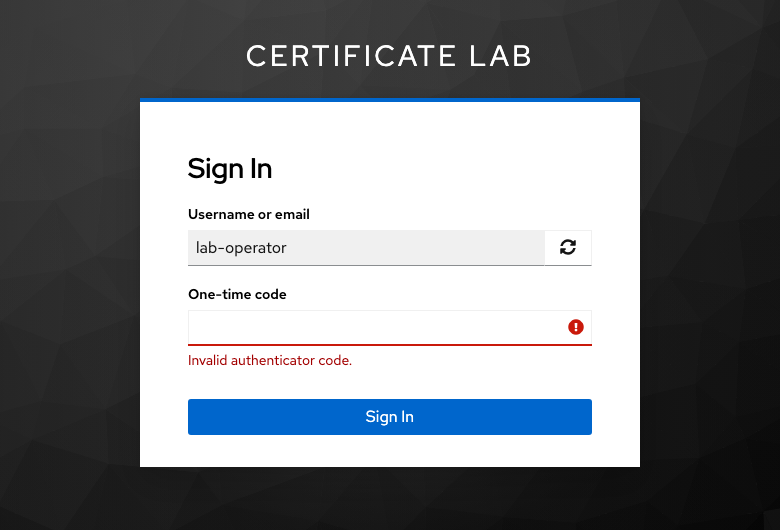
Keycloak rejected an invalid code during a fresh request in the local certificate lab. View full-size screenshot Check. The incorrect code blocks issuance. The current code completes a second request for the same operator.
Check your result
Record the authority, provisioner, operator identity, serial number and expiration. Keycloak verifies the one-time code. Smallstep verifies the identity token before issuing the certificate. Check renewal, other provisioners and the relying service’s acceptance of previously issued certificates separately.
What we tested
Tested on . In a local Keycloak 26.8.2 realm and step-ca 0.30.2 authority, we used a browser and the Smallstep signing API. Keycloak accepted a KeySigner enrollment code and rejected an invalid code in a fresh browser. A current code authorized a second certificate for the same operator. Both certificates matched the operator email and verified against the test root. The first certificate remained within its validity period.
If you get stuck
The code is accepted but the certificate request fails
Check the authority’s provisioner, its configured issuer and client, the operator email and domain policy, and the client’s trusted root. If the client skips the code prompt, check for an existing Keycloak session and test in a private browser. Keep the original certificate when checking what is still valid after changing a login method.