Before you start
KeySigner on iPhone or Mac and a browser
- Use an approved Workday Central Login test account that can enroll an authenticator app. Keep access to the account’s verified recovery email.
Data and access
Open authenticator setup in Workday
Use an approved Workday Central Login invitation and verify the test email address. After creating the test account, select the authenticator app on the authentication methods screen. Keep the page open at the setup QR code. Ask your administrator which sign-in page applies if your organization uses its own Workday login.
Check. Workday Central Login shows the authenticator setup QR code for the intended account.
Connect the authenticator
Open Accounts and choose Add (+), then Sign-in codes and backup. Unlock Sign-in codes, choose Add account and scan the provider’s QR code. Keep that image and any setup key private. Choose Show code and complete the required approvals. Enter the current six-digit code in Workday and choose Connect Authenticator App.
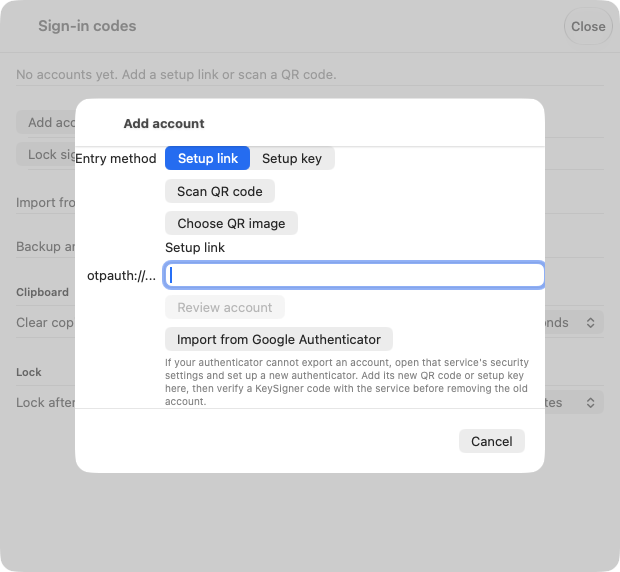
Use the QR code from the Workday Central Login enrollment page. View full-size screenshot Check. KeySigner lists the Workday test account and Workday accepts the setup code.
Verify a new sign-in
Keep the setup session open. In a private browser window, sign in to the same Workday Central Login test account. Use a fresh KeySigner code when Workday prompts for an authenticator code and confirm you can reach the intended Workday page.
Check. A new browser session reaches the intended Workday page after the authenticator challenge.
Confirm the recovery options
In the original session, open Manage Your Account and review Contact Information. Confirm you can access the verified email independently of the KeySigner device. Check whether your test account has a second recovery route, such as a verified mobile number.
Check. You know which account recovery option works if the device becomes unavailable.
Check your result
Record which Workday sign-in page you tested, whether Workday accepted the code in a new session and how the test account can recover. Keep the existing Workday roles and approval rules in place.
What we tested
Tested on . In the local KeySigner vault test, an independent verifier accepted a fresh code from a synthetic setup link and rejected a stale code. The enrollment and recovery steps follow Workday’s documentation. Verify the hosted sign-in in an authorized Workday Central Login test account.
If you get stuck
Workday rejects a code
Check that you chose the correct Workday account in KeySigner and that the device uses automatic time. Try the next code. If the authenticator entry needs to be re-paired, follow Workday’s reset instructions only after confirming access to the verified email.