
Before you start
KeySigner on iPhone or Mac and a browser
- Use an Azure DevOps Services test organization and the linked Microsoft or GitHub identity. The account needs read access to a test repository, an allowed authenticator code method, and an independent recovery option.
- Check the Azure DevOps version
Data and access
Find the account for your organization
Open the URL of your test organization at dev.azure.com and check the signed-in identity. Use a member who can read an existing test repository. Confirm a separate recovery method and keep the original browser session open.
Find the account that controls sign-in
 Microsoft Entra work or school account
- Ask your administrator whether the test account and sign-in policy permit third-party software OATH tokens. Open Security info in the correct directory and add a different authenticator app to get the QR code.
- Personal Microsoft account
- In the personal account’s Security page, choose Manage how I sign in, then Add a new way to sign in or verify. Choose Use an app and Set up a different Authenticator app.
 GitHub account
- If the Azure DevOps organization uses your GitHub identity, use Password and authentication in GitHub Settings to enroll an authenticator app. Confirm which identity actually has access to the organization.
Check. You have the correct organization, linked identity, and an independent recovery option.
Save the setup code in KeySigner
Open Accounts and choose Add (+), then Sign-in codes and backup. Unlock Sign-in codes and choose Add account. Scan the setup QR code for the account that signs in to your Azure DevOps organization. Check the label and keep the QR code and setup key private.
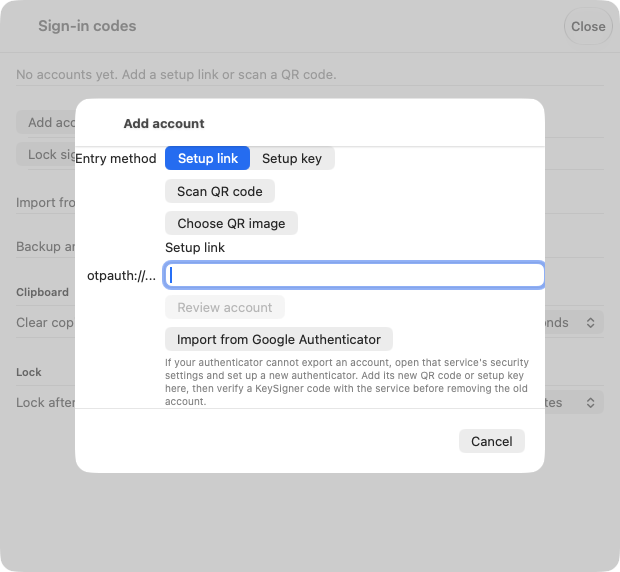
The KeySigner setup screen on Mac. Scan the setup code for your disposable account. View full-size screenshot Check. The KeySigner entry names the same account used for Azure DevOps.
Confirm the authenticator code
Choose Show code and complete the required approvals in KeySigner. Enter the current code where your provider asks you to verify the new authenticator. Confirm that the method appears in that account’s security settings. Save GitHub recovery codes separately if you use GitHub.
Check. The account provider confirms enrollment.
Open the test repository in a fresh session
Open the same Azure DevOps organization URL in a private browser. Select the same identity and directory and enter a fresh KeySigner code if the policy allows it. Open the expected project and check that you can read the intended repository in Repos. An established session or a different sign-in method leaves the code check incomplete.
Check. The sign-in accepts a fresh code and the intended repository opens for the same user.
Check your result
Record the sign-in provider, directory if applicable, Azure DevOps organization and test repository. For an Entra account, ask your administrator to check Authentication Details for the OATH code on this sign-in. Verify repository permissions, branch policies, pipeline connections and personal access tokens separately.
What we tested
Tested on . KeySigner generated codes from separate GitHub, personal Microsoft and Microsoft Entra-style test QR codes that matched an independent verifier. The account and repository steps follow Microsoft and GitHub documentation. Confirm the hosted sign-in in your own test organization.
If you get stuck
The directory or repository is missing, or no code appears
Check whether the organization uses a work or school account with the same address as your personal account. If your GitHub email is associated with an Entra-connected organization, sign in with your Entra account for that organization. Confirm the linked identity and Azure DevOps permissions before changing anything. If the organization requires a different authentication method, use the approved method.