

Before you start
KeySigner on iPhone or Mac with Sign-in codes
- Use a test Workspace user whose organizational unit or group allows authenticator codes. Check that an independent verification or recovery method is available.
- Use a non-admin account that signs in directly with Google and can view a sandbox project. Keep the existing verification method available.
- Use a tenant test user included in Third-party software OATH tokens. Check the authentication strength for the intended app and keep an independent method available.
- Use a tenant test user with read access to a sandbox resource and a policy that permits software OATH codes for the portal. Keep independent recovery available.
Data and access
Open the setup QR code
Use a test account with an existing recovery method and keep its working session open. Check the exact email address and domain or directory before you open the QR code. Use the policy already in place.
Find the right account settings
 Google Workspace or Google Cloud
- For an account that signs in directly with Google, open Google Account security settings, select 2-Step Verification, then set up Authenticator. In Google Workspace, ask your administrator to confirm the method is allowed for your group or organizational unit. If a different identity provider handles the Google Cloud sign-in, enroll with that provider instead.
 Microsoft Entra ID or Azure
- Ask your administrator to confirm that Third-party software OATH tokens applies to your test user. In Security info for the correct directory, choose Add sign-in method, select the authenticator app, and choose the option to use a different authenticator app. Continue until the QR code appears.
Check. The selected test account shows an authenticator QR code. A policy requiring a security key, passkey or another phishing-resistant method may exclude codes for this sign-in.
Add the account in KeySigner
Open Accounts, choose Add (+), then Sign-in codes and backup. Unlock Sign-in codes and choose Add account. Scan the setup QR code or use the image picker on Mac. Review the issuer and account. Keep the QR code and setup key private.
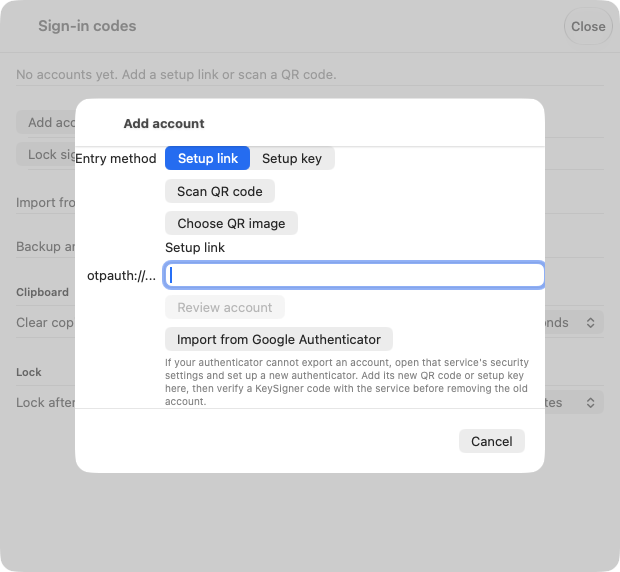
The KeySigner Mac setup screen. Use the QR code from your provider’s test account. View full-size screenshot Check. The saved KeySigner entry shows the expected issuer and account.
Verify the enrollment code
In KeySigner, choose Show code and complete the required approvals. Enter the current code in the provider’s setup form. Confirm the method is saved. Keep the existing security key, passkey or other independent recovery method available.
Check. The provider accepts the code and lists the authenticator in your account’s verification methods.
Try a fresh sign-in to the target app
Open a private browser window and use the same account. For Google Cloud or Azure, open the intended console and select your test project or directory. If another method is offered first, choose the authenticator code option when available. Approve a fresh code in KeySigner and enter it. An existing session or a different verification method leaves this test incomplete.
Check. The intended app opens after accepting a new code for the same account. For a cloud console, also confirm the project or directory. In Microsoft Entra, an administrator can check Authentication Details for an OATH verification code on this sign-in.
Check your result
Record the account, policy, app and sign-in where the code was accepted. The provider receives the code, and KeySigner can require approvals to show its copy. A separate authenticator can still verify your sign-in if the provider allows it. Anyone with a copy of the same setup key can generate the same codes.
What we tested
Tested on . In a local vault test, KeySigner imported a disposable account. A separate test verifier accepted the fresh code and rejected codes that were invalid, reused, expired or submitted for the wrong account. The Google and Microsoft steps follow provider documentation and need verification in your own test account.
If you get stuck
The code option is missing or the code is rejected
Check the account, device time and app policy. If the timer is near the end, wait for the next code. Google says an enrolled authenticator can take up to seven days to appear as a sign-in option. If the app requires a phishing-resistant method, use an allowed method and keep your recovery path available.