
Before you start
KeySigner on iPhone or Mac, a browser and kubectl
- Use a test cluster that trusts a Keycloak realm through OpenID Connect, a configured client, two test namespaces and an independent administrator. Give the test account permission to list pods in one namespace.
Data and access
Identify the cluster, realm and namespace
Use a test cluster configured to trust your Keycloak realm through OpenID Connect. Ask the cluster administrator for the expected issuer, client ID and mapped username. Give a non-admin test account permission to list pods in one namespace and keep a second namespace out of scope. Keep an independent administrator context available.
Check. The test cluster trusts the intended issuer. The test account, expected username and separate administrator are available.
Enroll the account in KeySigner
Ask the realm administrator to require Configure OTP for the test account. In the Keycloak Account Console, sign in as that account and open its setup QR code. In KeySigner, open Accounts, choose Add (+), then Sign-in codes and backup. Unlock Sign-in codes, choose Add account and scan the QR code. Choose Show code, complete the required approvals and enter the current code in Keycloak. Finish enrollment.
Check. Keycloak accepts the enrollment code and lists the new authenticator for the test account.
Sign in through the cluster’s client
Start the test cluster’s configured OpenID Connect client in a fresh browser session. Confirm that the browser opens the expected Keycloak realm. Enter a current KeySigner code when prompted. Use the resulting session with the test kubeconfig. Run kubectl auth whoami and confirm that the mapped username matches the test account.
Check. The client uses the test context and Kubernetes reports the expected username.
Confirm allowed and denied access
Run kubectl get pods -n <test-namespace> and confirm Kubernetes returns a pod list. Try the same read in the second test namespace and confirm access is forbidden. Use kubectl auth can-i create pods -n <test-namespace> to check that the account has no create permission without creating a pod.
Check. The first namespace returns a pod list. The second read is forbidden and the create permission check says no.
Start a fresh session and retest the code
Use a private browser without the prior Keycloak session or cached client credentials. In this disposable test, try an invalid code and confirm Keycloak stays at the challenge. Enter a current KeySigner code. Check the mapped Kubernetes identity and both namespace reads again.
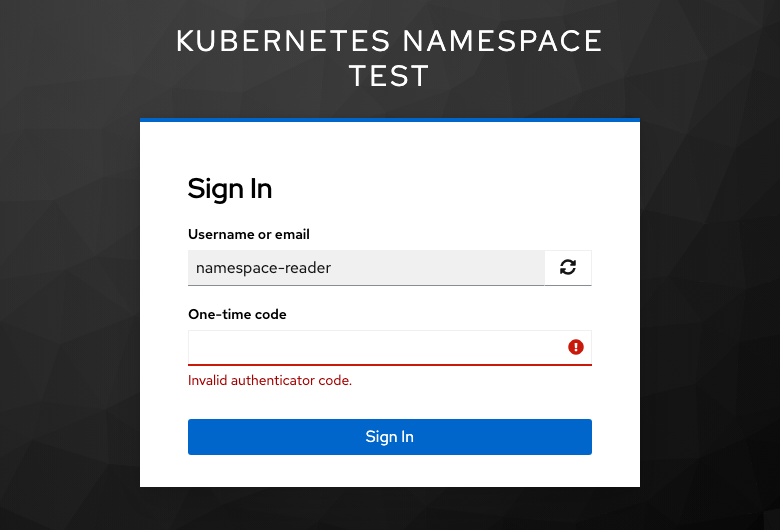
Keycloak rejected an invalid code during a fresh Kubernetes test session. View full-size screenshot Check. Keycloak rejects the invalid code. The current code returns the same scoped Kubernetes identity.
Check your result
Keycloak verifies the code. Kubernetes validates the resulting ID token and applies its own role grants. Record the context, mapped identity and results of both reads. Test token expiration and workload or administrator access separately.
What we tested
Tested on . In a disposable lab with Kubernetes 1.34.8 and Keycloak 26.8.2, a browser test used a KeySigner enrollment code and a fresh KeySigner code. Keycloak rejected an invalid code before issuing a new token. With each valid session, kubectl reported the same identity. Kubernetes allowed the pod list in one namespace, denied the same read in a second namespace and denied pod creation.
If you get stuck
Keycloak accepts the code but the cluster refuses access
For Unauthorized, check the current context, token expiration, trusted issuer and client ID. For Forbidden, compare the mapped username or groups with the role binding in that namespace. If you skip the code prompt, clear the test client session and open a fresh browser.