
Before you start
KeySigner on iPhone or Mac with Sign-in codes
- Use a Keystone test environment, a disposable user with project read access, and a separate administrator account.
Data and access
Prepare a separate test user
Use an approved Keystone test environment and confirm a separate administrator can still sign in. Create a disposable user with read-only access to a test project. Confirm the user can request a project token with their existing password before adding the new rule.
Check. You have a disposable user, a read-only test project assignment, and a working administrator account.
Enroll a KeySigner code
Have the Keystone administrator enable the totp authentication method alongside the deployment’s existing methods. Create a fresh private TOTP setup key for the test user and register it as that user’s TOTP credential. Use Keystone’s setup instructions to create a private QR code from the same key. In KeySigner, unlock Sign-in codes, choose Add account, and scan it.
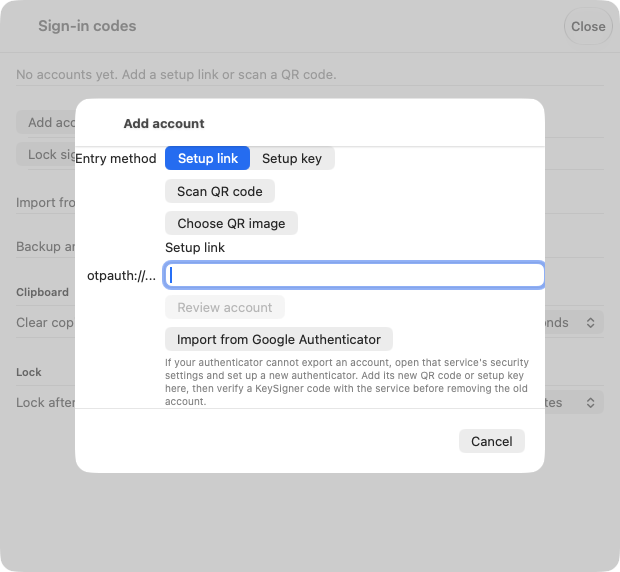
The KeySigner setup screen on Mac. Scan the private code for your Keystone test user. View full-size screenshot Check. The intended Keystone test user has a TOTP credential and its matching account is saved in KeySigner.
Require both factors and check the rule
In the test user’s options, set multi_factor_auth_enabled to true and set multi_factor_auth_rules to one rule containing password and totp. Submit a password-only token request at /v3/auth/tokens. Repeat with the correct password and an invalid code. Check that neither response includes a project token.
Check. A password alone and a password paired with an invalid code each return a 401 without an X-Subject-Token header.
Request and use a project token
Choose Show code in KeySigner and complete the required approvals. Use Keystone’s single-step token request with the test user’s password, the current code, and the test project ID. Check the returned user, project and role. Use the returned token to list the user’s accessible projects and confirm the independent administrator can still sign in.
Check. The valid request returns a 201 with a project token. The token works for the test read and has the intended project and role.
Check your result
Record the Keystone release, project, role, and token-request results. This verifies issuance for one Keystone test user. Check existing tokens, role assignments and any separate cloud service through their own workflows.
What we tested
Tested on . In a local Keystone 29.0.0 test, Keystone refused a password alone and an invalid code. It accepted a code generated by the KeySigner vault, issued a reader token for the test project, and allowed the project read. The separate administrator could still sign in.
If you get stuck
A password alone still returns a token, or Keystone rejects a valid code
Check the test user’s active authentication options and confirm its rules require both methods in the same rule. Check that the QR code came from that user’s registered key, confirm the clock on both systems, and retry with a fresh code. Use the separate administrator account if you need to correct the test user’s setup.