Hand off approval access
Give the next person working access, verify the approval rule and recovery, then review what to remove. Use the lost-key path if you suspect someone else has the key.
Find what depends on a key
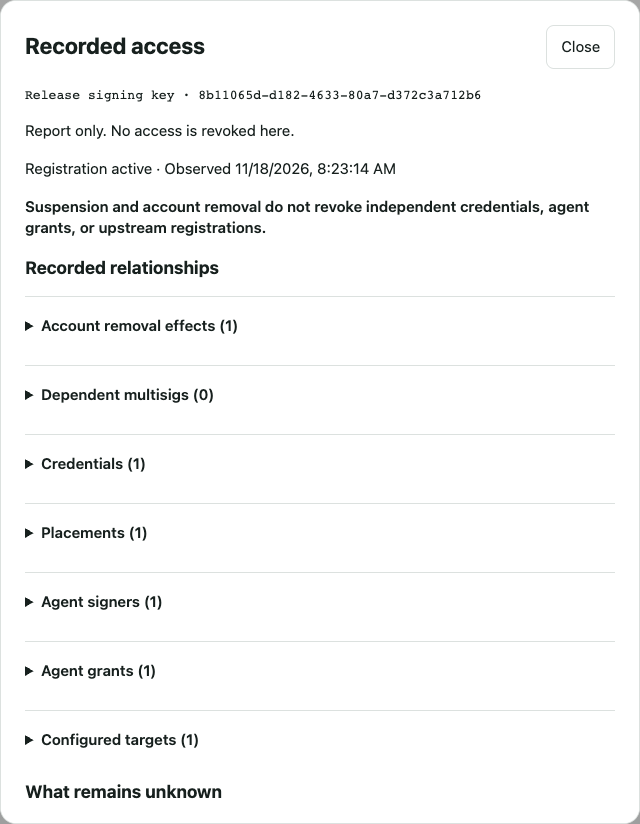
- Match the registration. In the KeySigner console, open Keys in the right workspace and select Recorded access beside the key. A workspace administrator needs key and policy permissions. Match the registration ID under the label, especially when keys have the same name. Use Reload report to refresh the observation.
- Follow the relationships. Open Account removal effects to compare the members left after removal with the required approvals. Open Dependent multisigs to see which visible rules rely on those accounts. If available for the key type, match the agent, action and resource under Agent grants and the destination under Configured targets.
- Check the affected action. Open each affected provider account or workflow with its owner and test the exact action. The report reflects records in this workspace at the observed time. Provider registrations, unrecorded copies and an agent’s ability to run the action still need checking. See how to verify an integration setup.
Planned handoff
- List the affected accounts. Review recorded access for the exact key. Record the required approvals and who can use each recovery route.
- Set up the replacement first. Have the account owner add the replacement through the account’s approved enrollment or membership process, where supported. Keep the existing rule and an independent backup available. Record any app, vault or administrator role the replacement will also need.
- Test access and recovery. Have the replacement start from a fresh session and complete a harmless action without relying on the departing person. Check the result in the app. Verify the expected block with too few approvals, then test the independent recovery route.
- Review and remove access. Preview the approval rule. Refresh Recorded access. Check the remaining registered keys against the required approvals and confirm the remaining people can use them. Pause if they cannot meet the rule or recovery fails. Use the account’s authorized removal process. If you mean to remove the key from every direct KeySigner account, review Remove from all accounts before confirming. Workspaces that require approval need an approved account change. Review access separately in each provider, then repeat the access and recovery checks.
Lost or untrusted key
Contact the account owner and use the independent recovery route. The registration owner can select Suspend when the option is available. Check for Suspended in this workspace. Suspension blocks new KeySigner uses of matching registrations in that workspace and leaves memberships and required approvals in place.
Review the affected app accounts, sessions and credentials with the provider administrator. Each provider controls its own registrations and sessions. Check that a fresh attempt with the old access is blocked when you can do so safely, and verify that the recovery owner can still get in.
Once the account owner has reviewed the affected access, retest the browser connection if the setup uses the KeySigner development extension.
Handoff example with 1Password and Okta
 1Password
- Before removing a teammate, help them move work items they need to hand off into an approved shared vault. Have the replacement open a harmless shared item and check any needed owner or administrator role. Follow 1Password’s offboarding steps for suspension, removal and rotation of credentials the person knew.
 Okta
- Have a second authorized administrator test the required access in a fresh browser session. Check what Okta account deactivation does to the user’s assigned apps. Verify session revocation with each app administrator when needed. Okta Universal Logout applies to supported apps.