


Before you start
Desktop Chrome, the development extension and KeySigner on iPhone. Desktop Firefox, the temporary development add-on and KeySigner on iPhone
- Use Chrome 111 or later, pair the computer tools with the phone, and use a disposable Ethereum account and trusted test site.
- Use Firefox 128 or later. Pair the computer tools with the phone, reload the temporary add-on after restarting Firefox, and use a disposable Ethereum account and trusted test site.
- Check the Google Chrome version
- Check the Firefox version
Data and access
Prepare a test account and site
Use the KeySigner development extension in a separate Chrome or Firefox profile. Pair the computer tools with your phone and open a trusted test site that can verify a plain Ethereum message signature. If you moved profiles or devices, check the original profile separately for its saved connections.
Check. KeySigner opens from the toolbar and shows the phone as reachable. You know the full address of the test account.
Find the site under Connected sites
Open KeySigner from the browser toolbar. Match the hostname and port, if shown, against the test site's address. Compare the shortened address in KeySigner with the test account. Use the full address when you verify the signature.
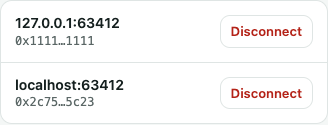
Connected sites in the Chrome development extension, with two local sites connected to separate test accounts. View full-size screenshot Check. The browser address matches the exact site row. Other site rows may use different accounts.
Disconnect just that site
Choose Disconnect next to the affected site and refresh it. Check that the site can no longer see a shared account or sign using the old connection. If another test site was connected, check that it can still see its account.
Check. A fresh page has no shared accounts, a request using the old account is denied, and any second connected test site keeps its access.
Share again and verify a signature
Reconnect from the test site and share only the intended account. Ask it to sign a short test message, compare the site, account and message on the approval screen, and approve. Use the test site's verification to match the signature to the full address of the selected account.
Check. A new account picker appears and the test site verifies the exact message against the expected full address.
Check your result
The site loses its original KeySigner connection, reconnects with only the selected test account, and verifies a signature from that account. Disconnecting changes access in this browser profile. Manage any provider sessions and credentials separately.
What we tested
Tested on . Local Chromium and Firefox tests used the development extension, the computer bridge and a simulated phone. Disconnecting one local site blocked its old signing request and left the second site connected. A fresh account choice produced a test message signature that matched the selected address.
If you get stuck
The device or key may be lost or copied
Follow the lost-key steps below and ask the account owner to review affected sessions and credentials before restoring access. A browser disconnect by itself only removes a site's access through this extension in the current profile.