
Before you start
Desktop Chrome 111 or later and the KeySigner development extension
- Use a separate Chrome profile with other wallet extensions disabled. The check stops before sharing an address, granting token permissions or swapping.
Data and access
Load KeySigner in a test profile
Load the KeySigner development extension in a separate Chrome profile with other wallets disabled. Open KeySigner from the toolbar and select Ethereum. You can check detection with the phone unpaired.
Check. The KeySigner icon is available in the Chrome toolbar.
Open the Uniswap wallet picker
Open the Uniswap web app at app.uniswap.org/swap. Select Connect. Find KeySigner marked Detected in the Connect a wallet panel. Close the panel after checking.
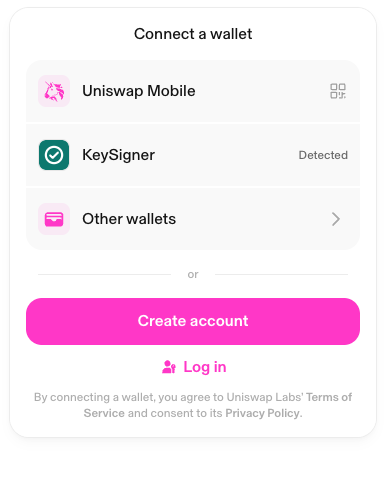
KeySigner appears in Uniswap before you share an address. View full-size screenshot Check. Uniswap shows KeySigner with the Detected label.
Choose a follow-up test
Use the local wallet example to verify an address grant and remove it with an unfunded test account. Review token permissions separately before testing a swap.
Check. The local guide shows how to check which address was shared and confirm access was removed.
Check your result
The Detected label confirms the wallet picker found the extension. Sharing an address, permitting token spending and swapping each require a separate check.
What we tested
Tested on . In Chromium 159.0.8154.6 with the KeySigner development extension, the live Uniswap web app showed KeySigner marked Detected. We stopped with the panel open. The browser reported zero shared addresses before and after opening it.
If you get stuck
KeySigner is missing from the Uniswap picker
Confirm that the development extension is enabled in this Chrome profile. Reload app.uniswap.org/swap and open Connect again. Check the extension against the local wallet example if it still does not appear.