

Before you start
Desktop Chrome, the development extension and KeySigner on iPhone
- Load the development extension folder in Chrome. The extension requires Chrome 111 or later. Pair the computer tools with the phone and use an Ethereum test key and a trusted test app that recognizes browser wallets.
- Check the Google Chrome version
Data and access
Set up the browser extension
Pair the KeySigner computer tools with your phone. Run keysigner-agent install-browser. In Chrome's extension manager, turn on Developer mode and choose Load unpacked. Select the KeySigner development extension folder and pin the toolbar icon.
Check. Chrome’s extension manager shows KeySigner enabled and its toolbar icon opens.
Share one test account
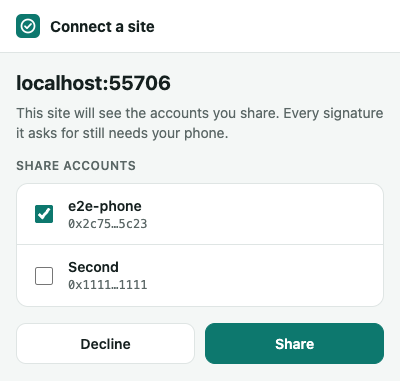
Open a trusted test app with a browser-wallet connection. Choose KeySigner, compare the website shown in the connection prompt with the page you opened, and share only the Ethereum test account you intend to use.
Check. Compare the full address the test site displays with the selected test account. The site should receive only that address.
Review and approve a message
Ask the test site to sign a short plain message. In your KeySigner phone Inbox, match the site, account and message before you approve.
Check. The test site’s verification matches the selected Ethereum address for that exact message.
Revoke the site's access
Open the KeySigner toolbar icon in Chrome and disconnect the test site. Refresh the test site.
Check. The site disappears from the KeySigner toolbar list. The refreshed site asks you to connect again.
Check your result
The site can verify the approved message with the account you chose. You can repeat the test with typed data or a test-network transaction. Check the network, recipient and amount on the phone before approving a transfer and confirm the transaction receipt afterward.
What we tested
Tested on . A local Chromium test site used the development extension, the local bridge and a simulated phone. The site received the selected account and disconnected successfully. The approved message signature matched that account.
If you get stuck
The site cannot see the test account
Check that the extension is enabled and its toolbar says the phone is reachable. Confirm you are on the intended network, reconnect the site and check that the test account is selected in the share prompt.