
Before you start
KeySigner on iPhone or Mac with Sign-in codes and a Vault API client
- Use a disposable Vault instance, one test user with working Login MFA, an independent administrator, and a test record. Keep the original authenticator entry and token in separate test clients until you verify the result.
Data and access
Who does what
Record the original sign-in and token
Use a disposable Vault instance and one test identity with an existing Login MFA rule. Sign in with the original KeySigner code and read a designated test record. Keep that token in its own client and record its accessor in a private note. Confirm the Vault instance, sign-in mount, identity entity ID, and TOTP method ID with a separate administrator.
Check. The original token reads the test record and a separate administrator can still act.
Remove the old authenticator secret
Plan a short interruption for new sign-ins by the test identity. From the independent administrator session, use Vault’s TOTP admin-destroy endpoint with that entity ID and method ID. Keep the Login MFA rule enabled. Confirm that the old code fails to issue a token while the previous token still reads the test record.
Check. The original code fails at sign-in, and the original token still reads the record.
Import a newly issued QR code
Use Vault’s TOTP admin-generate endpoint for the same entity and method. In KeySigner, open Accounts, choose Add (+), then Sign-in codes and backup. Unlock Sign-in codes and choose Add account. Scan the new QR code or choose its PNG. Check the issuer and account, save it with a distinct label, and remove the temporary image. Keep the original entry until you finish the checks.
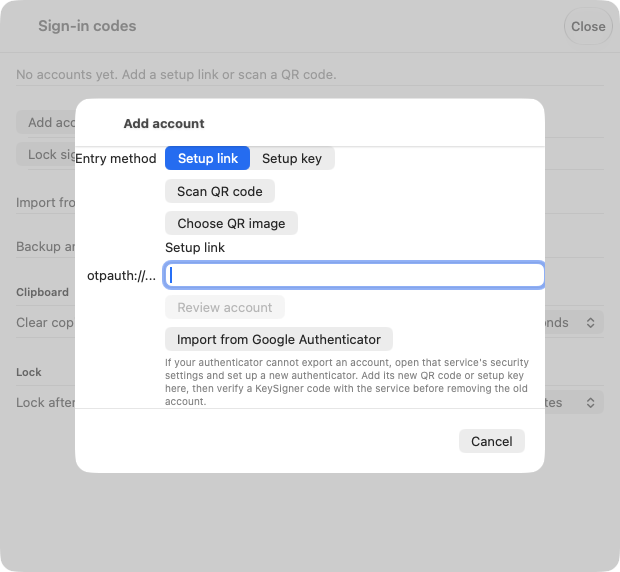
Use Add account to save the replacement from Vault’s newly issued QR code. View full-size screenshot Check. KeySigner lists two distinct entries for the same Vault test identity.
Check new sign-ins with both codes
From a fresh client, sign in through the original mount. Use the same TOTP method ID in the X-Vault-MFA header for both attempts. Submit a current code from the original entry and check that Vault returns no token. Try a current code from the replacement entry. Confirm the resulting token belongs to the same entity and can read the same test record. If both entries display the same digits, wait for the next code before comparing them.
Check. The old code fails and the new one issues a token that reads the same record.
Revoke the previous token and try again
For the planned test, use Vault’s revoke-accessor endpoint on the old token after confirming the replacement works. Test the same read with both tokens. If a code or token may have been exposed, have the administrator handle credential removal and affected-token revocation as incident actions, without waiting for the planned comparison. Review dependent tokens and dynamic secrets before revoking a token in a live environment.
Compare the results
Check. The old token loses access after revocation. The replacement token still reads the record.
Check your result
Record both sign-in attempts and both token reads. The Login MFA rule controls new sign-ins for its matching identity. Vault token and lease controls handle existing access separately. Remove the old KeySigner entry after the rehearsal and clean up the test tokens.
What we tested
Tested on . In local Vault Community 2.2.2, KeySigner imported both Vault QR codes. Vault rejected a current code from the old enrollment and accepted the replacement with the same Login MFA rule. The original token could still read the test record until separately revoked. After revocation, the original token received HTTP 403 and the replacement still read the record.
If you get stuck
Vault rejects both codes or the old token still works
Confirm the Vault instance, sign-in mount, entity ID, and method ID. Check the issuer, the replacement label, and both clocks before generating another code. If the old token still works after revocation, check that you revoked its accessor on the same instance and repeated the read using that exact token. Ask the independent administrator to reissue a test QR if the replacement enrollment cannot be recovered.