
Before you start
KeySigner on iPhone or Mac with Sign-in codes
- Use a disposable Vault instance with a username and password test user, a separate recovery administrator, and access to run Vault API calls.
Data and access
Who does what
Prepare a separate Vault test user
Use a disposable Vault instance with the username and password sign-in method enabled. Sign in as the pilot user once to establish a Vault identity and note its entity ID. Keep a separate administrator session available. Revoke the token from the initial pilot sign-in before testing the new rule.
Check. You have the pilot entity ID and can still reach the separate administrator.
Generate the setup QR code and save it in KeySigner
As the Vault administrator, create a time-based one-time password (TOTP) method with generation enabled. Use Vault’s admin-generate endpoint with that method ID and the pilot’s entity ID. Open the returned barcode as a private PNG. In KeySigner, open Accounts → Add (+) → Sign-in codes and backup, unlock Sign-in codes, and choose Add account. Scan the QR code or choose the PNG. Verify the issuer and account before you save, then remove the temporary image.
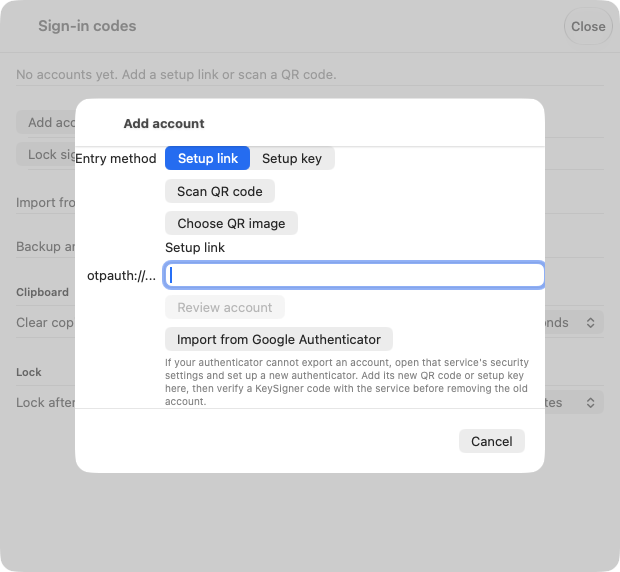
Use Add account to scan the Vault QR code or choose its PNG. View full-size screenshot Check. KeySigner shows the expected Vault issuer and pilot account.
Require the code for the pilot identity
Create a named Login MFA enforcement rule that lists the TOTP method ID and only the pilot’s entity ID. Start a fresh client session and sign in with the pilot’s password. Inspect the response for an MFA requirement without a client token. Leave the independent administrator session open.
Check. The password returns an MFA challenge and no token.
Use a current code to check token issuance
For a single-request sign-in, supply the password and X-Vault-MFA header. Use your method ID followed by :passcode= and the current code from Show code in KeySigner. In the test instance, submit one incorrect code first and confirm Vault denies the request. Submit a fresh KeySigner code and use Vault’s token lookup to confirm that the new token belongs to the pilot identity.
Check. Vault rejects the incorrect code and returns a new token for the pilot when a current code is supplied.
Remove the pilot rule and check recovery
From the separate administrator session, remove the named test enforcement, then sign in again as the pilot to check the prior behavior. Revoke the tokens from the rehearsal and remove the unused test enrollment or discard the test instance.
Check. The pilot can sign in according to the prior rule after the test enforcement is removed.
Check your result
Record the instance, sign-in method, pilot identity, and recovery administrator. Login MFA gates token issuance for the matching sign-in. Vault policies decide what that token can access. Previously issued tokens and workload identities have their own access and revocation controls.
What we tested
Tested on . In a disposable Vault Community 2.2.2 instance, the KeySigner vault imported Vault’s QR code. The password alone returned a challenge without a token. Vault denied an incorrect code and issued a token for the pilot identity with a current KeySigner code. Removing the test rule restored the prior password sign-in.
If you get stuck
Vault skips the challenge or denies the code
Check the test instance, sign-in mount, and entity ID if Vault skips the challenge. If a code is denied, match the MFA method ID and KeySigner entry to that same user. Check the clock on the device and Vault server and wait for a fresh code before retrying. Use the separate administrator to review or remove the pilot rule if the problem persists.