Before you start
KeySigner and a browser
- The test account needs BambooHR 2-Step Login with an authenticator app. Use the QR code that pairs the app and keep an available recovery method. If the site redirects authentication elsewhere, check the methods there.
- The school must enable Classroom MFA and allow the App method for this test account. Confirm the school portal and keep a second method or a way to reach the administrator for a reset.
Data and access
Find the authenticator app setup
Keep the current session open. Before you change a method, check which backup the account allows and make sure you can use it. Choose the setup for your test account below.
Choose your account
BambooHR employee account
- Open your employer’s BambooHR site and follow the 2-Step Login setup. Use the QR code on the step that connects the authenticator app. If the site redirects you to a separate service for authentication, check the available methods on that service. BambooHR lists SMS and recovery codes under Add a backup method.
 Clever teacher or staff account
- Your school must enable Classroom MFA and offer the app method for your account. Follow the prompt on your school’s Clever login page or open your profile menu and choose MFA settings. Select App and continue to the setup QR code. Keep another method if your school offers one, or confirm who can reset your method.
Check. The test employee or teacher account shows the QR code that connects an authenticator.
Add the account in KeySigner
In KeySigner, open Accounts, choose Add (+), then Sign-in codes and backup. Unlock Sign-in codes and choose Add account. Scan the QR code that pairs the authenticator, check the account label, and save. Keep the setup QR private.
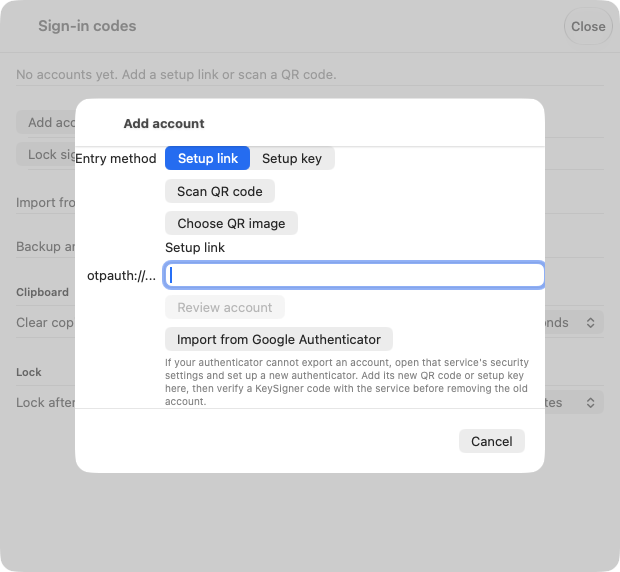
The account setup screen in KeySigner for Mac. View full-size screenshot Check. The new entry has the intended provider and account label in KeySigner.
Confirm the new method
Choose Show code in KeySigner and complete the required approvals. Enter the current code in BambooHR or Clever. Check that the new method appears in the account’s settings. Add a separate backup method if the provider and your policy allow it.
Check. BambooHR or Clever accepts the code and lists the method.
Try a fresh browser session
Start at the same BambooHR site or Clever school login in a private window. When asked for the authenticator code, use a fresh one from KeySigner. Check that you reach the intended site or portal. In Clever, leave the option to remember the device unchecked during the test if it appears.
Check. A new session opens the intended BambooHR site or Clever portal after you enter a fresh code.
Check your result
Record the test user, the site you opened, and the recovery method you kept. BambooHR access levels and Clever permissions still determine which records, schools, and apps that user can access.
If you get stuck
You see a download link, have no app option, or cannot enter a code
In BambooHR, continue to the QR code for pairing. In Clever, ask your school whether the app method is available for the test account. If the code expires while you complete approvals, request a fresh code. If a new code fails, check the account label and device clock before using the provider’s recovery method.