
Before you start
KeySigner, a browser, and a Shibboleth operator
- The operator needs a test account with an issued TOTP setup link and a test app whose flow uses the plugin. Confirm access recovery independently and test the app in a fresh browser.
Data and access
Pick one test user and one app
Ask the identity provider operator to confirm which test account and app use the Shibboleth TOTP plugin. The operator sets up the code for that account and configures when Shibboleth asks for it. Agree on an independent way for the test user to regain access before starting.
Check. The operator confirms that the test app’s sign-in flow asks for an authenticator code for this user.
Import your operator’s setup link
Have the operator deliver the authenticator setup link through your institution’s approved private channel. In KeySigner, open Accounts, choose Add (+), then Sign-in codes and backup. Unlock Sign-in codes, choose Add account, and enter the setup link. Check the issuer and account label before saving. The setup link contains the secret used to generate codes. Keep it out of tickets, screenshots, and online QR tools.
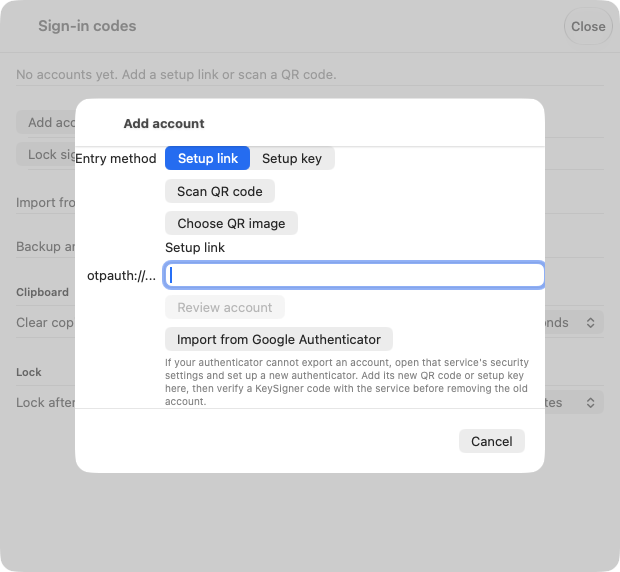
The account setup screen in KeySigner for Mac. View full-size screenshot Check. KeySigner shows an entry with the expected institution and account.
Check a code with the operator
Choose Show code in KeySigner and complete the required approvals. The operator can check a current test code with Shibboleth’s token validation utility using the test account’s configured token. If approval takes too long, show a fresh code.
Check. Shibboleth’s token validator reports that the current code is valid.
Start at the institutional app
Open the test app in a private window, complete the first authentication step, and enter a fresh KeySigner code at the Shibboleth prompt. Confirm that the app opens under the intended account. Record the app, account, and backup method for the next test.
Check. A new browser session opens the test app after Shibboleth accepts a fresh code.
Check your result
The command-line check verifies agreement on the token. A fresh browser session checks the app’s authentication policy. Test each additional app you intend to cover. The operator controls token enrollment and recovery and should keep token data within Shibboleth’s authentication system.
What we tested
Tested on . In a local test, KeySigner imported a setup link from the Shibboleth TOTP plugin. The plugin’s 2.3.2 command-line validator accepted a current KeySigner code and rejected an incorrect code against IdP 5.2.3 libraries. Verify the browser sign-in on your institution’s deployment separately.
If you get stuck
The app skips the code prompt or rejects the code
Ask the operator to check that the test app invokes the expected Shibboleth flow for this user. For a rejected code, check the issuer and account label, confirm that the test device and identity provider clocks agree, and try a new code. Use the agreed recovery path if the fresh-session test still fails.