Before you start
KeySigner on iPhone or Mac with Sign-in codes
- Use a test account that signs in with its Vultr password. Have a secure place for the separate emergency backup codes.
- Use a test profile with access to account security. Have secure storage ready for the first set of backup codes or confirm you still have an unused code from an earlier setup.
- Use a test user in an IAM identity domain that allows Mobile App Passcode. Have a bypass code or a separate domain administrator available for recovery.
- Use a non-admin test user on a test instance in a realm that allows user-configured TOTP. Keep a separate administrator available and use the same realm for enrollment and sign-in.
Data and access
Find the authenticator setup QR code
Use a test account with a working sign-in and keep that session open. Start enrollment for your provider and stop at the QR code. Return to your provider’s instructions after adding the account in KeySigner.
Enrollment and recovery by provider
 Vultr
- Open Account → General → Authentication → Manage Two Factor Authentication. Pick a time-based authenticator app, enter a description, and choose +. Scan the QR code, choose Continue, and confirm the code. In the same list, add Backup Codes. Save the codes before choosing Enable Emergency Codes.
 OVHcloud
- From your account menu, open Access my account → Security. For a first method, choose Enable two-factor authentication, then Mobile App and Next. Enter the generated code beside the QR code. Save the 10 single-use backup codes shown on first setup. If an earlier method is active, confirm that you still have an unused backup code.
 Oracle Cloud
- Use a test user in an IAM identity domain that allows Mobile App Passcode. Enroll when prompted or open My profile → Security. Select Mobile App and choose Offline Mode or Use Another Authenticator App if shown. Scan the QR code and verify the passcode. Generate a bypass code if your domain enables that option and confirm how your domain administrator can restore access.
 Proxmox VE
- On a test instance, open Datacenter → Permissions → Two Factor and add TOTP for the exact test user and realm. Scan the QR code, then enter the current code and the user password if prompted. In Two Factor, create and save Recovery Keys if the test account has no set. Keep a separate administrator available.
Check. The setup page identifies the provider account and, where shown, the realm or tenancy you intend to test.
Add the test account in KeySigner
Open Accounts, then Add (+) and Sign-in codes and backup. Unlock Sign-in codes, choose Add account, and scan the QR code. Check the issuer and account name before adding the entry. Keep the setup QR code private.
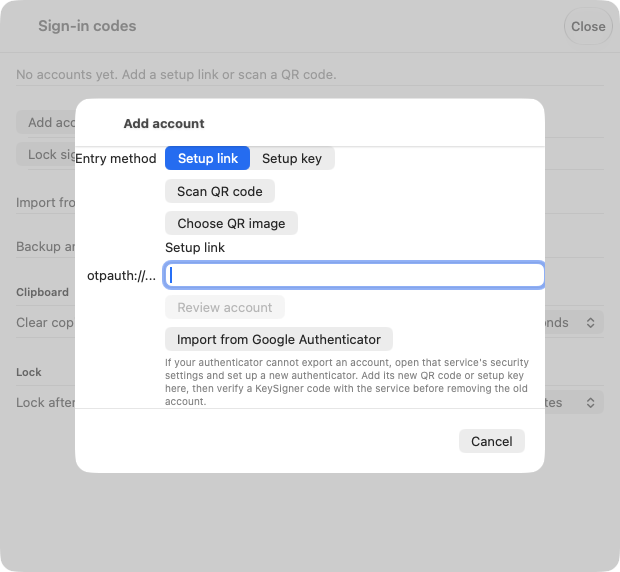
Add account in KeySigner for Mac before scanning a test QR code. View full-size screenshot Check. The saved entry in KeySigner has the issuer and user you recorded from the provider.
Confirm a code and save an independent backup
Choose Show code and complete the approvals your signing rule requires. Return to the steps for your provider to confirm the current code and save an independent backup before closing the original session.
Check. The provider lists the enabled method. Open the independent backup location or check that your recovery administrator can reach the account.
Check a fresh sign-in
Open a private window and sign in as the same test user. For Proxmox, select the same realm and the TOTP App method if asked. For Oracle Cloud, open Show alternative login methods and select Mobile app passcode if needed. Approve a new code in KeySigner and enter it at the prompt.
Check. The private window opens the same provider account and realm or tenancy. Keep the original session available while you check.
Check your result
The provider opens a fresh session after accepting the current code. Confirm you can reach the saved backup or recovery administrator without the test session or KeySigner. This checks the account’s interactive sign-in. Virtual machines, workload identities and automation credentials have separate access controls.
If you get stuck
The provider doesn’t offer an authenticator app code
Check the test account’s sign-in method and your provider’s current instructions. In Oracle Cloud, check that the identity domain allows Mobile App Passcode. In Proxmox VE, check the user’s realm and its existing factor rules. If a code is rejected, check the issuer, account and device clock before trying a new code. Leave the working factor and recovery route in place.