Before you start
KeySigner on iPhone or Mac with Sign-in codes
- Use a LastPass test vault that offers Google Authenticator in Multifactor Options. Confirm an independent recovery option before enrollment.
- Use a NetIQ Advanced Authentication 6.4 test account with TOTP enabled and the third-party QR format. Have an administrator confirm the method is allowed for the target app.
- Use a test app whose PingFederate policy uses PingID with Authenticator App enabled. Keep an independent method available or arrange a reset with the help desk.
Data and access
Open your test account’s authenticator setup
Choose your provider below. Keep the original session open and confirm an independent way back in before enrolling or changing a method. For managed accounts, ask your administrator to confirm that the target app accepts codes from a third-party authenticator.
Find your provider’s settings
 LastPass
- In the LastPass test vault, open Account Settings, then Multifactor Options. Edit Google Authenticator to get the setup QR code and follow the prompts to enable it. This setup applies to the vault’s own authenticator prompt. If your account opens through another identity provider, check the method there.
 NetIQ Advanced Authentication 6.4
- In the newer Self-Service portal, open Authentication Methods and add TOTP under Your Enrolled Single Methods for sign in. Use the third-party authenticator QR code and enter the service and account labels when asked. Ask your administrator for the Google Authenticator-compatible QR format if you see a code meant for the NetIQ app.
 PingFederate with PingID
- Use a test app whose PingFederate policy uses PingID. Ask the administrator to confirm that PingID allows Authenticator App and where to add the method. Choose Authenticator App in the enrollment flow to get the third-party setup QR code. For the final check, start at the test app itself.
Check. The test account offers a setup QR code for a third-party authenticator.
Scan the provider’s setup QR code
In KeySigner, open Accounts, choose Add (+), then Sign-in codes and backup. Unlock Sign-in codes and choose Add account. Scan the provider’s setup QR code, check the account label, and save. Treat the QR code like a password.
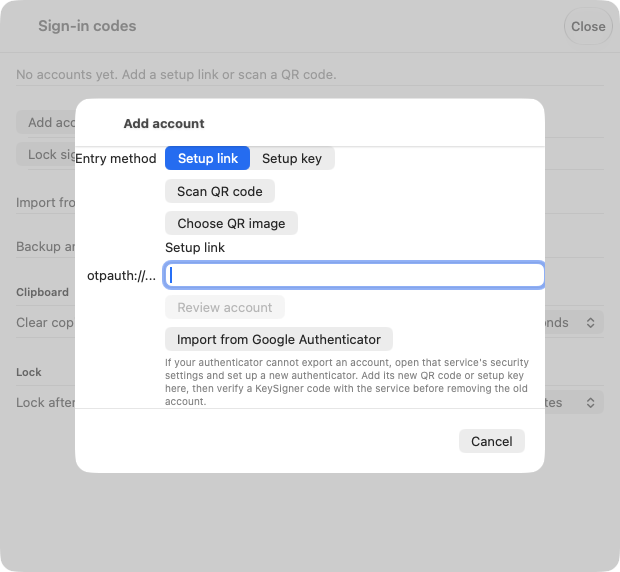
The account setup screen in KeySigner for Mac. View full-size screenshot Check. The new account appears in KeySigner with the intended account label.
Finish enrollment and test a code
Choose Show code in KeySigner and complete the required approvals. Enter the current code when prompted. For NetIQ, finish enrollment and use Test Method on the saved TOTP entry to check that NetIQ accepts the code.
Check. The provider lists the method, or its test screen accepts a current code.
Verify access from a fresh browser
Open a private browser window and sign in to the LastPass vault or the intended test app. Use a fresh KeySigner code at the authenticator prompt. Check that you can reach the intended vault or app, then leave the independent recovery method available.
Check. The intended vault or app opens after the provider accepts a new code.
Check your result
Record the test account, the vault or app you opened, and the recovery method you kept. The provider verifies the code and controls access. Keep separate records when an app or administrator portal uses a different policy.
What we tested
Tested on . In a local KeySigner vault test, an independent verifier accepted a current authenticator code and rejected a stale code. Enrollment steps follow provider documentation. Verify the LastPass vault or your target app using a test account in a fresh browser.
If you get stuck
The QR code will not scan or the app rejects the code
Confirm you chose the third-party authenticator option. If enrollment succeeds but the app asks for a different method, check the app’s policy with your administrator. For a rejected code, check your device clock and account label and retry with a new code. Use the provider’s recovery instructions if you still cannot get in.