
Before you start
KeySigner on iPhone or Mac and a browser
- Use an authorized Breathe test employee with two-factor authentication available. Confirm that HR or an administrator can reset the employee’s method.
- Check Breathe HR availability
Data and access
Find the test employee’s setup QR code
Use a test employee with two-factor authentication already required or available under Profile → User preferences. Ask HR or an administrator who can reset the test account before you start. Sign in on the web and continue to the authenticator setup QR code. In the People Portal app, choose Set Up in Browser if prompted.
Check. Breathe shows the authenticator setup for the intended employee.
Add the Breathe account in KeySigner
Open Accounts → Add (+) → Sign-in codes and backup. Unlock Sign-in codes, choose Add account, and scan the setup QR code. Save the entry under the test employee’s email address. Keep the QR code and manual setup key private.
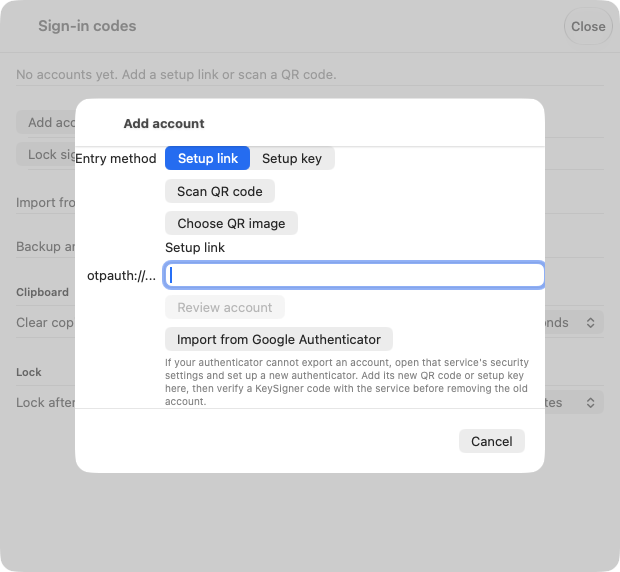
Scan the authenticator setup QR code in KeySigner. View full-size screenshot Check. KeySigner lists the correct Breathe test account.
Confirm the code in Breathe
In KeySigner, choose Show code and complete the required approvals. Enter the current code in Breathe with the digits together. If the code has just changed, use the new one.
Check. Breathe accepts the code and finishes setup.
Open the employee’s People Portal in a fresh session
Use a private browser window to sign in to the same Breathe workspace with the test employee’s email address. Enter a fresh KeySigner code. Check the employee profile and the test view the account is expected to see.
Check. The fresh session opens the intended employee profile.
Check your result
Record the test profile, workspace, and person who can reset access. Breathe’s assigned permissions still govern who can see employee records and approve leave.
What we tested
Tested on . A local KeySigner vault test imported a synthetic setup link. An independent verifier accepted a fresh code and rejected a stale code. The Breathe steps follow its published instructions. Confirm the hosted sign-in with an authorized test account.
If you get stuck
Breathe rejects the code or the employee changes phones
Confirm the KeySigner entry, check that the device sets its time automatically, and try a fresh code with no spaces. If you lose the authenticator, ask HR or an administrator to open the employee profile and choose User access → Reset 2FA. Complete enrollment again in a browser.