
Before you start
KeySigner on iPhone or Mac with Sign-in codes
- Use a self-hosted test cluster that allows the Authenticator App method for a local test user. Keep an independent cluster administrator available.
Data and access
Who does what
Invite a local user on a test cluster
Use a disposable, self-hosted cluster configured for local users with the Authenticator App option. Ask a separate administrator to create an invitation for a new pilot with a limited role. Confirm the cluster address and keep the invitation private.
Check. The invitation points to the intended cluster and an independent administrator can still sign in.
Save the Teleport QR code in KeySigner
Open the invitation, choose Get started, and set the test password. On Set up Multi-Factor Authentication, choose Authenticator App and name the method. In KeySigner, open Accounts → Add (+) → Sign-in codes and backup, unlock Sign-in codes, and choose Add account. Scan the QR code and confirm the cluster and test user before saving.
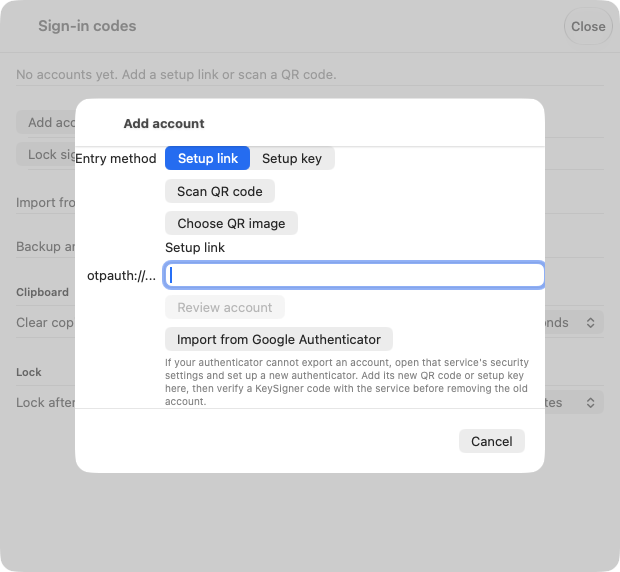
Use Add account to scan the QR code from the Teleport invitation. View full-size screenshot Check. KeySigner lists the expected Teleport account and Teleport shows the pending Authenticator App setup.
Finish registration and check a fresh sign-in
Choose Show code in KeySigner, complete the required approvals, and enter the code in Teleport’s Authenticator Code field. Choose Submit and wait for registration to succeed. Once that code expires, open a private browser window and sign in to the same cluster. Choose Authenticator App if prompted. In the disposable cluster, check one incorrect code first, then try a new KeySigner code.
Check. Teleport confirms registration and rejects the incorrect code in the fresh browser.
Confirm access and clean up
Check that the new session opens Resources for the expected test user. Your Teleport role determines which resources appear. Ask the separate administrator to remove the disposable local user or discard the test cluster when the rehearsal is complete.
Check. A current KeySigner code opens Resources for the same account.
Check your result
Record the cluster, local user, MFA method, and independent administrator. This checks the Teleport web sign-in. Resource permissions and methods configured by another identity provider are separate checks.
What we tested
Tested on . A local Teleport Community 18.11.10 cluster accepted a code from the KeySigner vault to finish registration. In a fresh Chromium session, Teleport rejected an incorrect code and opened Resources after accepting a new KeySigner code for the same local user.
If you get stuck
Teleport offers a different method or rejects a code
Check that you opened the intended cluster’s local sign-in. Ask the administrator which authentication methods the test cluster allows. If the code was rejected, verify the account and cluster, check the device clock, and wait for a fresh code. Keep the separate administrator available for a new invitation or a test enrollment reset.