Before you start
KeySigner computer tools, desktop Chrome and Python 3
- Use Chrome 111 or later, load the development extension in a fresh test profile, and connect to the internet to reach the public RPC.
Data and access
Set up a test browser
Install the KeySigner computer tools and run the command below. In a fresh Chrome profile, open chrome://extensions, turn on Developer mode, choose Load unpacked and select apps/browser-extension/extension from the KeySigner source checkout.
keysigner-agent install-browserCheck. The KeySigner extension appears in the Chrome toolbar.
Open the example page
Download amoy-test.html into an empty folder. In that folder run python3 -m http.server 31947 --bind 127.0.0.1. Open http://127.0.0.1:31947/amoy-test.html in the test browser.
<!doctype html> <html lang="en"> <meta charset="utf-8"> <title>KeySigner Polygon Amoy test</title> <h1>Test KeySigner on Polygon Amoy</h1> <button id="add" disabled>Add Polygon Amoy</button> <button id="mismatch" disabled>Try a mismatched chain ID</button> <button id="read" disabled>Read latest block</button> <p role="status" id="result">Looking for KeySigner…</p> <script> const result = document.querySelector("#result"); const endpoint = "https://polygon-amoy.gateway.tenderly.co"; const amoy = "0x13882"; const addButton = document.querySelector("#add"); const mismatchButton = document.querySelector("#mismatch"); const readButton = document.querySelector("#read"); let wallet; const request = (method, ...params) => wallet.request({ method, params }); window.addEventListener("eip6963:announceProvider", ({ detail }) => { if (detail.info.rdns !== "dev.sig.wallet" || wallet) return; wallet = detail.provider; addButton.disabled = mismatchButton.disabled = readButton.disabled = false; result.textContent = "KeySigner found."; }); window.dispatchEvent(new Event("eip6963:requestProvider")); function addNetwork(chainId) { return request("wallet_addEthereumChain", { chainId, chainName: "Polygon Amoy", rpcUrls: [endpoint], nativeCurrency: { name: "POL", symbol: "POL", decimals: 18 } }); } function onClick(button, action) { button.addEventListener("click", async () => { addButton.disabled = mismatchButton.disabled = readButton.disabled = true; try { result.textContent = await action(); } catch (error) { result.textContent = error.message; } finally { addButton.disabled = mismatchButton.disabled = readButton.disabled = false; } }); } onClick(addButton, async () => { await addNetwork(amoy); return "Active chain: " + await request("eth_chainId"); }); onClick(mismatchButton, async () => { await addNetwork("0x13883"); return "The mismatched network was accepted."; }); onClick(readButton, async () => { if (await request("eth_chainId") !== amoy) { return "Add or switch to Polygon Amoy before reading its latest block."; } const block = await request("eth_blockNumber"); return "Polygon Amoy block: " + BigInt(block).toString(); }); </script> </html>Check. The test page reports KeySigner found.
Review the network request
Select Add Polygon Amoy. In the KeySigner prompt, check localhost port 31947, Polygon Amoy, chain ID 80002, the Tenderly RPC address and currency POL. Choose Decline to keep the current network. Repeat the request and choose Add network.
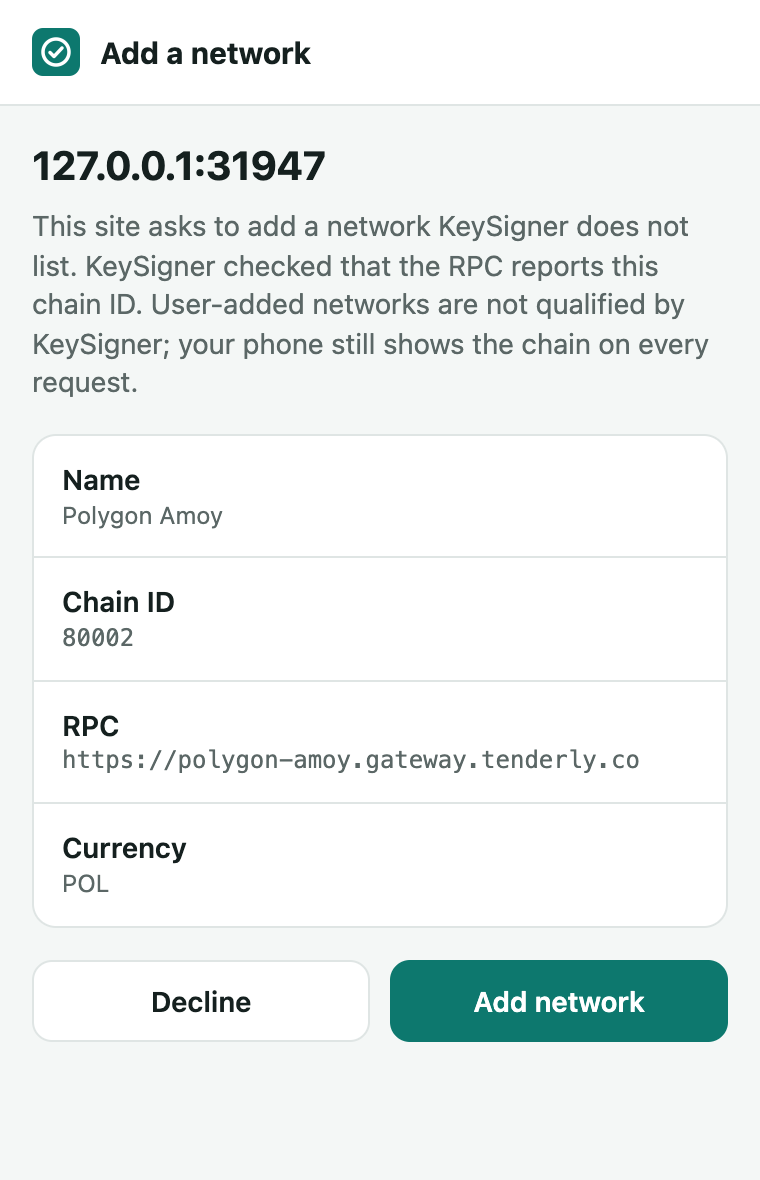
The KeySigner network prompt for the local test page. View full-size screenshot Check. Decline leaves your original network active. After Add network, the page reports Active chain: 0x13882.
Read a block and check a mismatch
Choose Read latest block. Then choose Try a mismatched chain ID to request 80003 from the same endpoint. Read the latest block again to confirm Amoy is still active. Close the test browser and stop the local server when finished.
Check. Polygon Amoy block shows a positive block number. The mismatched ID is rejected and the active chain stays on Amoy.
Check your result
Confirm the prompt shows the intended chain ID and RPC address before adding the testnet. After adding it, the read succeeds and the mismatched request leaves the selected network unchanged.
What we tested
Tested on . We used the KeySigner development extension and native wallet bridge in Chromium against Tenderly’s public Polygon Amoy endpoint. Declining and submitting a mismatched chain ID left the browser unchanged. Adding chain 80002 saved the endpoint, and the block read through KeySigner matched a direct read from Tenderly.
If you get stuck
You did not see a prompt or the read failed
Start in a fresh browser profile. If Amoy is already saved, KeySigner selects the saved network and keeps its existing RPC address. If the public endpoint is unavailable, check the address in the prompt and retry when the provider is reachable.